The Ultimate Guide to WordPress Security
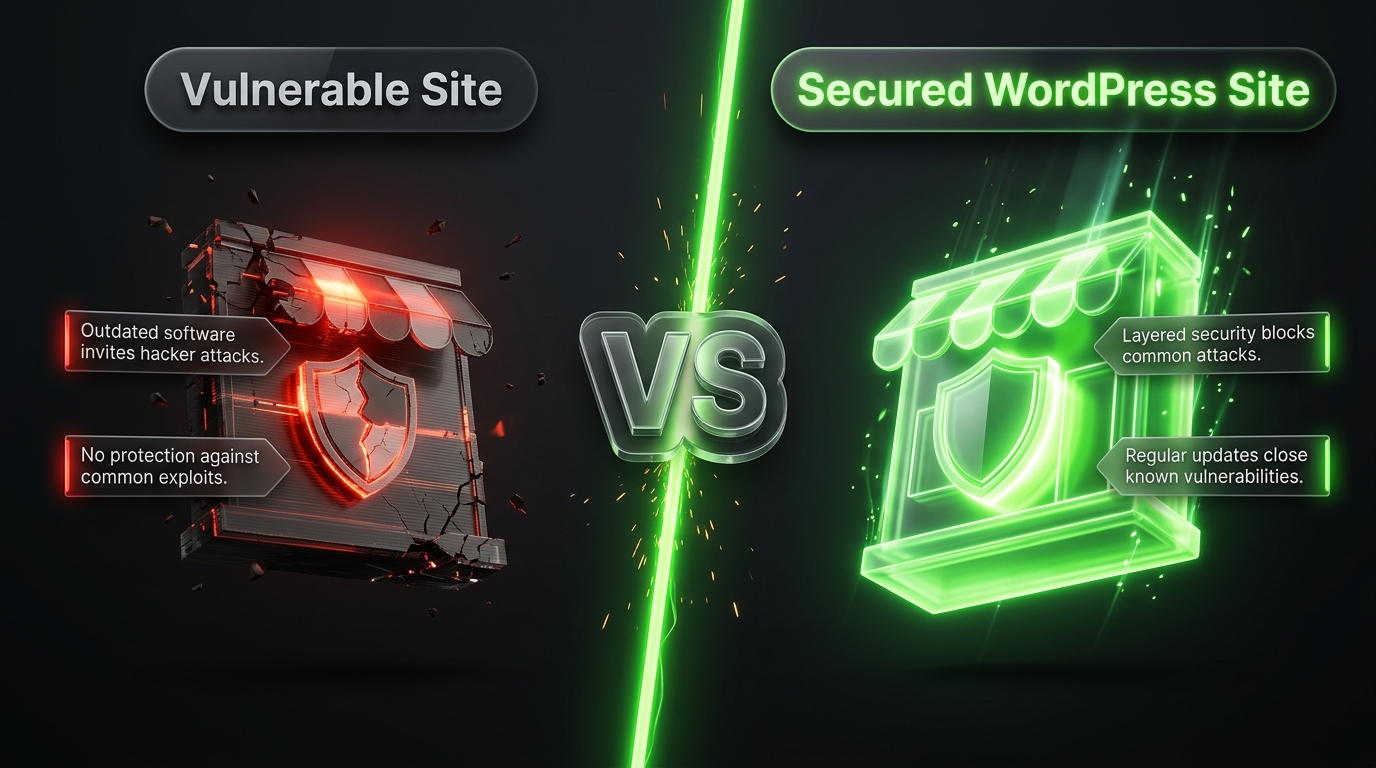
WordPress powers a massive share of the websites on the internet today, and that popularity comes with a downside: it’s one of the most frequently targeted platforms by hackers, bots, and automated attack scripts. The good news is that the vast majority of WordPress security breaches aren’t the result of some sophisticated, unstoppable attack — they’re the result of basic precautions that were never taken. Outdated plugins, weak passwords, and misconfigured permissions account for the overwhelming majority of compromised sites.
This guide walks through everything you need to know to lock down a WordPress site properly — from the fundamentals every site owner should have in place, to more advanced hardening techniques, to what to do if you suspect your site has already been compromised.
Why WordPress Security Deserves Real Attention
Before getting into the specifics, it’s worth understanding why WordPress sites get targeted so often. It isn’t because WordPress itself is inherently insecure — the core software is maintained by a large team and patched regularly. The real risk comes from three sources:
- Scale. Because so many websites run on WordPress, it’s an efficient target for automated attacks. Bots don’t care about your specific business; they scan millions of sites looking for the same known vulnerabilities.
- The plugin and theme ecosystem. WordPress’s greatest strength — its enormous library of plugins and themes — is also its biggest attack surface. A single poorly maintained plugin can create a vulnerability that has nothing to do with WordPress core itself.
- Neglect. Many site owners set up their WordPress site once and never touch it again. Untouched sites accumulate outdated software, unused plugins, and stale user accounts — all of which increase risk over time.
Understanding this helps clarify the priority order for securing your site: keep software updated, be deliberate about what plugins you install, and treat your website as something that needs periodic maintenance, not a one-time project.
Part 1: The Fundamentals Every Site Needs
1. Keep Everything Updated
This is, without question, the single highest-impact thing you can do. WordPress core, your theme, and every plugin you use should be kept on their latest versions. Most security breaches exploit vulnerabilities that were already patched in a newer release — the attack succeeds simply because the site owner never updated.
Enable automatic updates for WordPress core (at least for minor releases) and check plugin and theme updates regularly. If you’re not comfortable applying major updates without testing them first, use a staging site to verify compatibility before pushing changes live.
2. Use Strong, Unique Passwords and Enforce Them
Weak passwords remain one of the most common entry points for attackers, especially through brute force login attempts. Every account with access to your WordPress dashboard administrators, editors, contributors should use a long, unique password rather than something memorable or reused from another account.
Consider requiring strong passwords for all users through a security plugin, and never share a single admin login across multiple people. Each person who needs access should have their own account with only the permission level they actually need.
3. Enable Two Factor Authentication (2FA)
Even a strong password can be compromised through phishing or a data breach elsewhere. Two factor authentication adds a second verification step typically a code from an authenticator app making it far harder for an attacker to gain access even if they have your password. Most major WordPress security plugins offer 2FA as a built-in feature.
4. Limit Login Attempts
By default, WordPress allows unlimited login attempts, which makes brute force attacks (where a bot tries thousands of password combinations) possible. Installing a plugin that limits and temporarily blocks repeated failed login attempts closes off this entire attack method.
5. Change the Default “admin” Username
Older WordPress installations often default to a username of “admin,” which attackers already know to try. If your site still uses this, create a new administrator account with a different username, transfer content ownership if needed, and delete the old “admin” account.
6. Hide or Relocate the Login Page
By default, WordPress login pages live at a predictable URL. Moving your login page to a custom, non default URL won’t stop a determined attacker, but it eliminates the enormous volume of automated bot traffic that specifically targets the default login path.
Part 2: Hosting and Server Level Security
7. Choose Reputable Hosting
Your hosting provider handles a significant portion of your site’s underlying security server hardening, network level firewalls, and how quickly they patch server software. Cheap, oversold hosting often cuts corners here. When evaluating a host, ask specifically about their security practices: do they provide free SSL certificates, automated backups, malware scanning, and isolation between accounts on shared servers?
8. Use HTTPS Everywhere
An SSL certificate encrypts data moving between your visitors’ browsers and your server, protecting login credentials, form submissions, and payment information from interception. Most hosts now offer free SSL certificates, and there’s no good reason for a modern WordPress site to run without one. Beyond security, HTTPS is also a ranking factor for search engines.
9. Set Correct File and Directory Permissions
Incorrect file permissions can allow attackers to modify or execute files they shouldn’t have access to. As a general guideline, WordPress folders should typically be set to 755 and files to 644, with the wp-config.php file which contains your database credentials set even more restrictively where your hosting environment allows it.
10. Disable File Editing From the Dashboard
WordPress includes a built in code editor that lets administrators edit theme and plugin files directly from the dashboard. If an attacker gains admin access, this feature makes it trivial for them to inject malicious code. Disabling it removes one more avenue of attack, and any legitimate code changes should be made directly on the server or through version control instead.
Part 3: Plugin and Theme Hygiene
11. Only Install Plugins and Themes From Trusted Sources
Nulled (pirated) premium plugins and themes downloaded from unofficial sites are one of the most common sources of malware infections. These files are frequently modified to include hidden backdoors. Only install plugins and themes from the official WordPress repository, directly from reputable developers, or from marketplaces with strong vetting processes.
12. Remove Unused Plugins and Themes Entirely
An inactive plugin or theme can still be a security risk if it isn’t deleted vulnerabilities in dormant code can sometimes still be exploited. Don’t just deactivate plugins and themes you’re not using; delete them.
13. Regularly Audit Your Plugin List
Every plugin you install expands your site’s attack surface. Periodically review your active plugins and ask whether each one is still necessary. A leaner plugin list is not only more secure it also tends to improve site performance.
14. Check Plugin Reviews and Update History Before Installing
Before adding a new plugin, check when it was last updated and how actively the developer maintains it. A plugin that hasn’t been updated in over a year, especially one with a large install base, is a rising security risk as new WordPress versions are released around it.
Part 4: Backups and Monitoring
15. Maintain Automated, Off Site Backups
Backups won’t prevent an attack, but they’re what stands between a security incident and a total disaster. Your backup strategy should include your full database and files, run automatically on a regular schedule, and store copies somewhere other than your own server ideally on cloud storage separate from your hosting account. Test your backups periodically to confirm they can actually be restored.
16. Use a Web Application Firewall (WAF)
A web application firewall filters incoming traffic before it reaches your site, blocking known malicious patterns, bad bots, and common attack signatures like SQL injection attempts. Many security plugins include a basic WAF, and some hosting providers offer one at the server level as well.
17. Install a Security Monitoring Plugin
A dedicated security plugin can handle several of the practices above in one place malware scanning, login attempt limiting, file integrity monitoring (which alerts you when core files are unexpectedly modified), and activity logging. Reputable options in this space include Wordfence, Sucuri Security, and iThemes Security, among others. Pick one, configure it properly, and actually review the alerts it generates rather than letting it run unattended.
18. Monitor for Unexpected Changes
File integrity monitoring comparing your current WordPress core files against known clean versions can catch an intrusion early, often before it becomes visible to site visitors. Set up alerts so you’re notified immediately if core files are modified outside of a normal update.
Part 5: User Access and Data Protection
19. Apply the Principle of Least Privilege
Give every user account only the access level they actually need to do their job. Not every contributor needs administrator access, and not every staff member needs the ability to install plugins or edit theme files. Reducing the number of full admin accounts reduces the number of ways your site can be compromised through a single weak account.
20. Remove Old User Accounts Promptly
When an employee, contractor, or contributor no longer needs access to your site, remove their account immediately rather than leaving it dormant. Old, unused accounts are a common and often overlooked entry point.
21. Secure Your wp config.php File
This file contains your database credentials and security keys. Beyond setting restrictive file permissions, consider moving it one directory above your web root (where your hosting setup allows it) so it isn’t directly web accessible.
22. Disable XML RPC If You Don’t Need It
XML RPC is a WordPress feature that allows remote connections useful for some mobile apps and integrations, but also a common target for brute force and denial of service attacks. If you don’t use any service that requires it, disabling it removes another potential entry point.
Part 6: What to Do If Your Site Is Compromised
Even with strong precautions, breaches can still happen. If you suspect your WordPress site has been compromised unexpected redirects, unfamiliar admin accounts, defaced pages, or a hosting provider warning you about malware — act quickly and methodically:
- Take the site offline or into maintenance mode to stop the damage from spreading further or affecting visitors.
- Change all passwords immediately WordPress admin accounts, hosting account, database, and FTP/SFTP credentials.
- Restore from a known clean backup if you have one from before the compromise occurred.
- Scan thoroughly using a reputable security plugin or service, or bring in a professional malware removal service if the infection is severe or you’re not confident doing it yourself.
- Check for unfamiliar admin accounts, files, or scheduled tasks the attacker may have created to maintain access even after an initial cleanup.
- Update everything core, theme, and every plugin once the site is confirmed clean.
- Review how the breach happened if possible, and address that specific vulnerability so the same issue doesn’t recur.
If your site handles sensitive customer data or processes payments, a serious breach may also carry legal or regulatory reporting obligations depending on your jurisdiction it’s worth consulting a professional in that case rather than assuming a technical fix is the end of the process.
A Simple Security Checklist
For a quick reference, here’s a condensed version of the priorities covered above:
- [ ] WordPress core, theme, and plugins fully updated
- [ ] Strong, unique passwords enforced for all users
- [ ] Two factor authentication enabled
- [ ] Login attempts limited
- [ ] Default “admin” username removed
- [ ] SSL/HTTPS enabled sitewide
- [ ] Reputable hosting with server level security
- [ ] Unused plugins and themes deleted
- [ ] Automated off site backups running and tested
- [ ] Security plugin installed and actively monitored
- [ ] User permissions set to least privilege necessary
- [ ] wp config.php secured
- [ ] XML RPC disabled if unused
Final Thoughts
WordPress security isn’t a single setting you switch on and forget about it’s an ongoing habit built from a series of small, consistent decisions: keeping software updated, being selective about plugins, enforcing strong access controls, and maintaining backups you’ve actually verified work. None of these steps individually guarantee protection, but together they eliminate the overwhelming majority of the attack methods that compromise WordPress sites every day.
If security feels overwhelming to manage on top of everything else running a website requires, it’s a reasonable and common decision to bring in a developer or agency specifically for ongoing maintenance and monitoring. The cost of that support is almost always smaller than the cost in time, reputation, and sometimes revenue of recovering from a serious breach.