HOW TO UNDO AI CHANGES TO YOUR SHOPIFY THEME (ROLLBACK GUIDE)
Introduction
Customizing your Shopify theme is an important part of creating a professional online store. Whether you are adding new sections, improving product pages, fixing layout problems, or changing your storefront’s design, theme editing allows you to build a shopping experience that matches your brand.
With AI-powered tools, merchants can now make many of these changes without manually writing Liquid, CSS, or JavaScript.
But what happens if an AI-generated change doesn’t work as expected?
Perhaps a section stops displaying correctly, your product grid becomes misaligned, or a customization affects an existing feature.
In these situations, you may want to undo AI changes to your Shopify theme and restore an earlier version of the affected code.
Fortunately, AI Theme Code Editor by SectionKit includes a Recent AI Activity dashboard with rollback controls that can help merchants reverse previous AI-assisted modifications.
In this guide, you’ll learn how to find your editing history, identify the change you want to undo, and use the available rollback option.
We’ll also explain the safety precautions you should take before restoring an earlier version of your Shopify theme.
The Merchant’s Challenge: Why Undoing Shopify Theme Changes Can Be Difficult
Shopify merchants may encounter several problems after changing theme code.
1. Unexpected layout changes
A modification intended to improve one section may unintentionally affect another part of the storefront.
For example, changes to CSS styling could cause overlapping elements, inconsistent spacing, or incorrect product card alignment.
2. Broken functionality
Changes involving JavaScript or Liquid can affect theme features such as navigation menus, product selectors, filters, and interactive components.
3. Difficulty identifying the responsible edit
If several modifications were made recently, it can be difficult to determine which one caused the problem.
4. Manually restoring old code
Without a reliable history or backup, merchants may need to compare code files manually and recreate the previous version.
5. Risk of losing newer customizations
Reverting an older change may also affect modifications made afterward, depending on how the rollback system works.
6. Limited technical experience
Store owners without coding knowledge may struggle to recover their previous theme files safely.
These challenges make change history, backups, and rollback controls valuable tools for Shopify customization.
Why Is a Shopify Theme Rollback Important?
A rollback allows you to reverse an unwanted change and work toward restoring a previous state.
This is especially useful when experimenting with new theme sections, layout changes, CSS adjustments, or AI-generated code.
A reliable rollback workflow can help merchants recover from unsuccessful edits, reduce manual troubleshooting, and maintain better control over theme modifications.
However, it is important to understand that rolling back an individual code change is not necessarily the same as restoring an entire Shopify theme.
The outcome depends on the files affected, the available backup, and how the rollback functionality handles later edits.
Introducing AI Theme Code Editor by SectionKit
AI Theme Code Editor helps merchants customize Shopify themes using natural-language instructions.
Instead of manually creating every code modification, store owners can ask the AI assistant to investigate errors, create new sections, or change storefront functionality.
The application also provides editing-history and backup-related controls.
Relevant Features
- Recent AI Activity: Review a history of AI-assisted editing actions.
- Rollback controls: Access a Rollback button for eligible recorded changes.
- Affected file information: Identify theme files associated with previous edits.
- Activity timestamps: Review when changes were saved or published.
- Theme selection: See the environment associated with your editing activity.
- Backup information: View the most recent backup timestamp.
- Sandbox workflow: Save proposed changes before applying them live.
- Code editor: Review theme files and AI-generated modifications.
These tools can help merchants manage changes more carefully.
App Link: Install AI Theme Code Editor on Shopify
Step-by-Step Guide: How to Undo AI Changes to Your Shopify Theme
Follow these steps to access the AI Theme Code Editor rollback feature.
Step 1: Open the Shopify App Store
First, open your browser and search Google for Shopify App Store.
Click the official Shopify App Store result.
You can also visit https://apps.shopify.com directly.
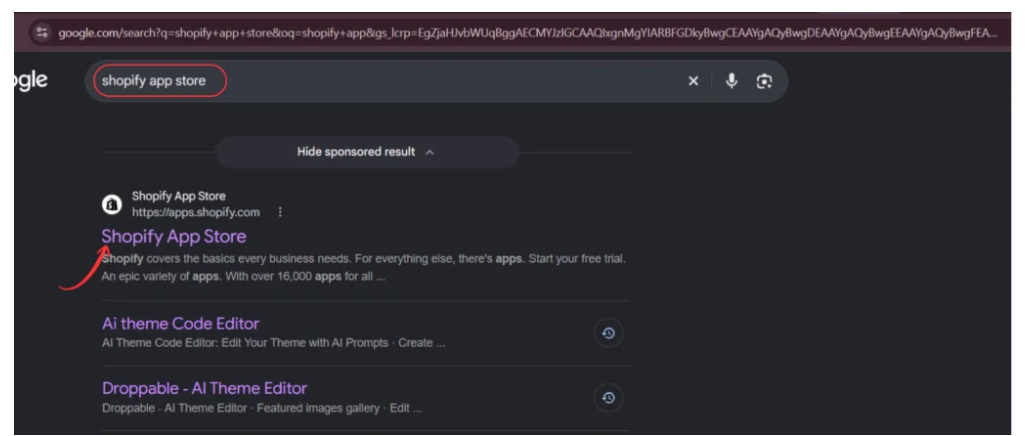
Image 1: Search for the official Shopify App Store.
The Shopify App Store provides applications that help merchants customize and manage their online stores.
Step 2: Search for AI Theme Code Editor
After opening the Shopify App Store, locate the search field.
Enter AI Theme Code Editor.
Find the app named AI theme Code Editor, identified by its code-editor icon, and select it.
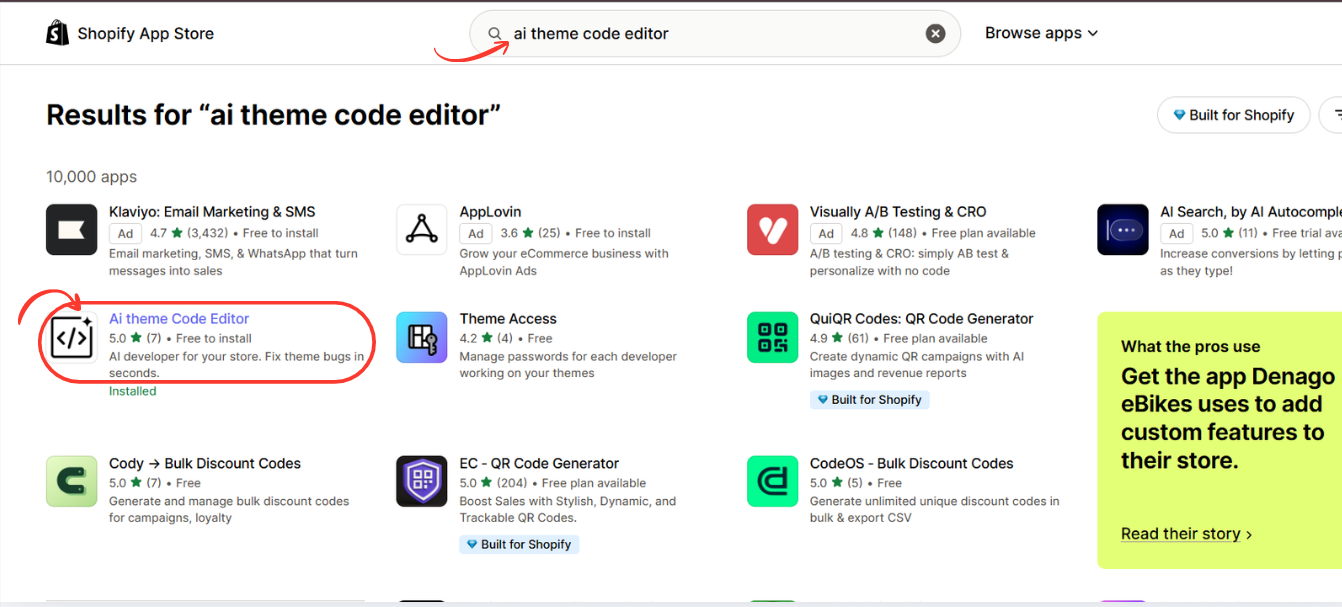
Image 2: Search for AI Theme Code Editor and open its app listing.
Step 3: Install or Open AI Theme Code Editor
On the app listing, review its features and installation information.
Click Install if you have not installed the app.
Complete Shopify’s authorization process to connect it to your store.
If the app is already installed, click Open.
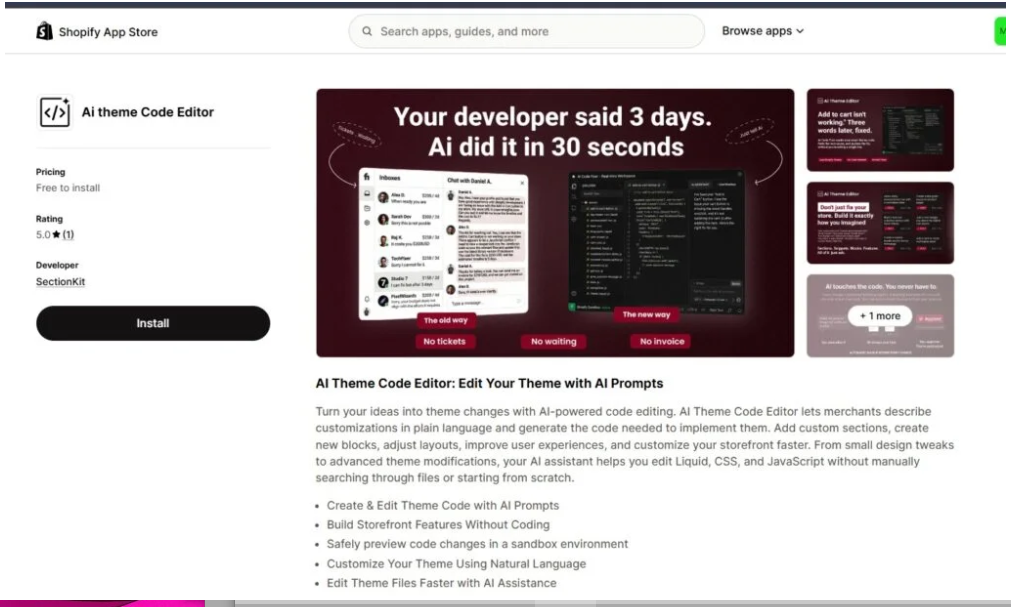
Image 3: Install or open AI Theme Code Editor through the Shopify App Store.
After opening the application, you can access the relevant theme management and editing tools.
Step 4: Open AI Theme Code Editor and Find Recent AI Activity
From your Shopify admin dashboard, open AI Theme Code Editor in the Apps sidebar.
Navigate to the app’s main dashboard, where you can see editing statistics, environment details, backup information, and recent activity.
Your screenshot shows several dashboard cards, including AI Edits Made, Files Improved, Theme Health Score, and Last Backup.
Below these cards is the Recent AI Activity section.
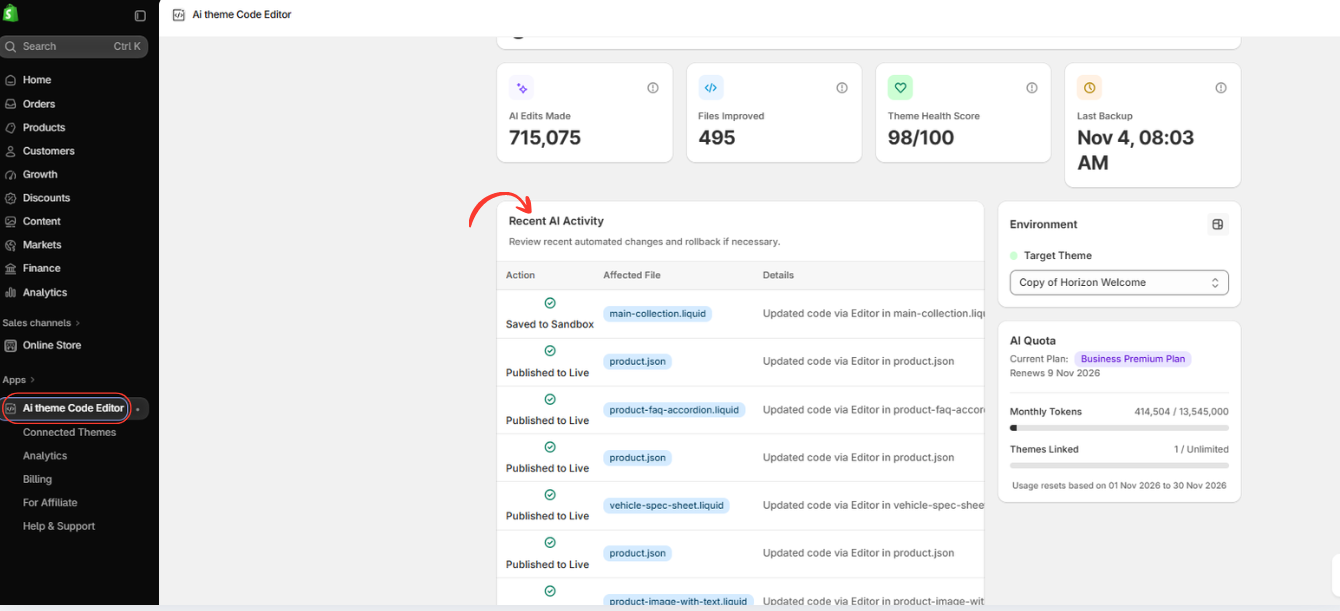
Image 4: Open the AI Theme Code Editor dashboard and locate the Recent AI Activity history.
The example dashboard displays the following information:
| Dashboard metric | Value shown |
|---|---|
| AI Edits Made | 715,075 |
| Files Improved | 495 |
| Theme Health Score | 98/100 |
| Last Backup | November 4, 08:03 AM |
| Target Theme | Copy of Horizon Welcome |
These are values visible in the supplied example screenshot, not general performance claims or guarantees.
The Recent AI Activity table records editing actions and their associated files.
For example, your screenshot shows activity involving files such as main-collection.liquid, product.json, product-faq-accordion.liquid, and other theme components.
Some activities are marked Saved to Sandbox, while others are marked Published to Live.
This distinction is important because changes saved to a sandbox may not have been applied to the published storefront.
Step 5: Find the AI Change You Want to Undo
In the Recent AI Activity section, review the history of modifications.
Look for the action associated with the problem you want to fix.
For example, if your collection page layout became misaligned, you may want to inspect activity involving main-collection.liquid.
If a product page stopped displaying a custom section correctly, the relevant record may involve its section file or product template.
Use the displayed timestamps, filenames, and action types to identify the most likely change.
Your second screenshot highlights the activity history and its available Rollback buttons.
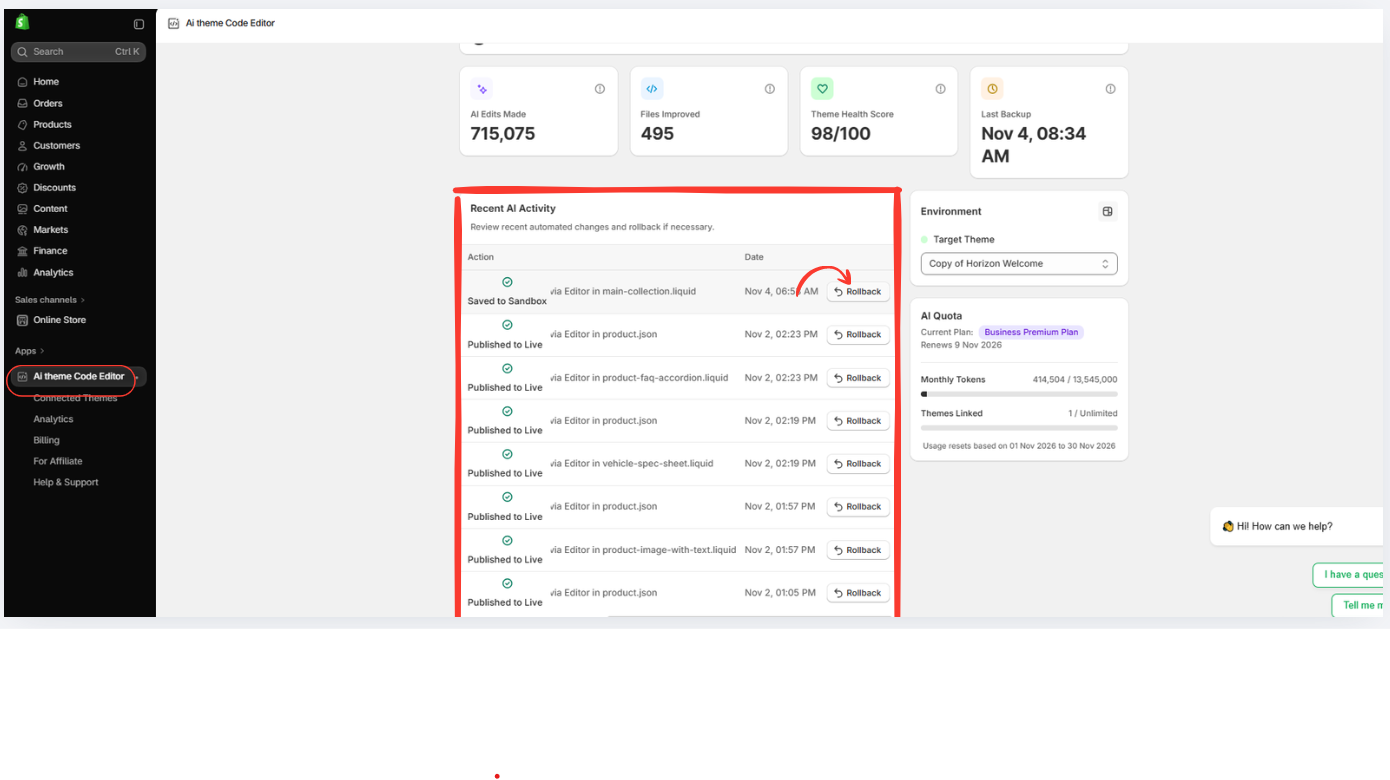
Image 5: Review AI editing history and locate the Rollback button for the change you want to reverse.
Each eligible activity row in the screenshot includes a Rollback button.
Before clicking it, confirm the target theme and the associated file or action.
Step 6: Click Rollback
Once you have identified the relevant activity, click Rollback on that row.
If the app displays a confirmation message or details about the restoration, review them carefully before continuing.
Pay attention to whether the action will restore an individual file, an earlier revision, or a broader set of changes.
Important: Your screenshots demonstrate the presence of Rollback buttons, but they do not show the confirmation screen or a completed rollback. The exact restoration scope must be checked in the app.
Avoid reversing multiple changes simultaneously unless you understand how those changes depend on one another.
Step 7: Verify the Restored Theme
After the rollback operation, inspect the affected Shopify theme.
Open your store’s theme preview and revisit the page where the problem originally appeared.
Check whether the previous layout or functionality has been restored.
For example, if you rolled back a collection page modification, inspect product card alignment, spacing, image dimensions, and collection filters.
If you reversed a custom section update, verify that its settings and functionality are behaving as expected.
Also check related pages to make sure the rollback did not create additional problems.
Step 8: Confirm the Correct Version Is Active
Finally, confirm that the intended theme contains the expected code and that your storefront is working properly.
If you are editing a draft theme, you may need to publish it separately after confirming that everything is correct.
If the rollback affected your live theme, verify the published storefront immediately.
Check the activity history again, if the app records the restoration, and retain a backup of the working version.
What Can You Undo With AI Theme Code Editor?
The screenshots show rollback controls associated with several types of theme activity.
AI-generated Liquid modifications
Activity records may identify changes to files such as main-collection.liquid or other custom section files.
Product template modifications
The activity history includes entries for product.json, a template file used in Shopify storefront configuration.
Custom Shopify sections
Custom section files, including FAQ accordions and product information sections, are also represented in the activity list.
Published AI changes
Some activity entries are marked Published to Live and display rollback controls.
Sandbox changes
The screenshots also show a Saved to Sandbox activity with a Rollback button.
Although these entries demonstrate that rollback controls exist for different action types, merchants should verify what each rollback restores before proceeding.
Rollback vs. Theme Backup: What’s the Difference?
| Feature | Rollback | Theme backup |
|---|---|---|
| Primary purpose | Reverse a recorded change | Preserve an earlier theme state |
| Typical scope | May target specific recorded modifications | Often preserves a broader theme version |
| Best use | Undoing an identifiable recent edit | Recovery from larger or uncertain problems |
| Important consideration | Later edits may depend on the reversed change | Restoring a backup may overwrite newer work |
A rollback is useful when you know which change caused the problem.
A separate theme backup is valuable when you need a broader recovery option or want to preserve a known working version.
For important storefront changes, maintaining both an activity history and independent backups is good practice.
Best Practices Before Rolling Back Shopify Theme Changes
Confirm your target theme
Make sure you are working on the correct theme, particularly when your store contains published and draft versions.
Review the affected file
Use the activity details to understand which file or feature was modified.
Preserve newer work
If you have made additional changes since the problematic edit, create a backup before rolling back.
Check for dependent changes
A later customization may depend on code introduced by an earlier change. Reversing that earlier modification could affect the newer feature.
Test on desktop and mobile
After restoring code, preview the affected pages at multiple screen sizes.
Verify critical functionality
Check product variant selection, navigation, add-to-cart controls, and other important storefront elements.
Keep a record of major modifications
Documenting important edits makes it easier to troubleshoot problems and identify which change needs to be reversed.
Frequently Asked Questions (FAQs)
1. How do I undo AI changes to my Shopify theme?
Open AI Theme Code Editor, find Recent AI Activity, locate the change you want to reverse, and use the available Rollback button. Review any confirmation details and test the result.
2. Does AI Theme Code Editor have a rollback feature?
Yes. Your screenshots show Rollback buttons next to recorded activity in the AI Theme Code Editor dashboard.
3. Can I undo a change that was already published live?
The screenshots show Rollback buttons beside entries marked Published to Live. Confirm the exact restoration behavior in the app before proceeding.
4. Can I reverse changes to a Liquid file?
The dashboard displays records associated with Liquid files and rollback controls. Whether a particular change can be restored depends on its available history and the app’s rollback behavior.
5. Will rollback restore my entire Shopify theme?
Not necessarily. A rollback may apply to a recorded modification rather than the entire theme. Verify its scope before confirming the action.
6. Can I undo sandbox changes?
Your screenshot shows a Rollback button beside an activity marked Saved to Sandbox, indicating a rollback option is available for that recorded action.
7. Will I lose my newer customizations?
That depends on the files affected and how the rollback is implemented. Create a backup of your current theme before restoring an older revision.
8. Do I need to know coding to use Rollback?
The dashboard provides visible rollback controls, so you do not need to manually rewrite code to initiate the action. However, understanding what will be restored remains important.
9. Can I recover a Shopify theme without AI Theme Code Editor?
Shopify theme duplicates and other backup or version-history options may provide alternative recovery paths, depending on what was saved and which files were changed.
10. Is AI Theme Code Editor free?
The app has been shown as free to install. Paid plans and token-based usage options may apply, so consult the current Shopify App Store listing.
Conclusion
AI-powered Shopify theme editing makes it easier for merchants to customize their online stores, but not every generated modification produces the expected result.
Sometimes, a layout change, custom section, or code adjustment needs to be reversed.
With AI Theme Code Editor by SectionKit, merchants can review Recent AI Activity and access rollback controls associated with previous editing actions.
The screenshots demonstrate a dashboard containing editing statistics, backup information, affected files, activity records, and Rollback buttons.
These tools can make it easier to identify changes that may need to be reversed.
For safe recovery, always verify the selected theme, understand the rollback’s scope, preserve newer modifications, and test the storefront afterward.
Whether you are experimenting with custom Shopify sections or troubleshooting an unexpected theme issue, a careful rollback workflow can help you maintain better control over your store.
Want to manage Shopify theme edits with AI?Install AI Theme Code Editor on Shopify




