HOW TO UPDATE WIX PRODUCT IMAGES WITHOUT LOSING YOUR ORIGINAL PHOTOS
Introduction
Updating product photographs is an important part of maintaining a professional Wix online store. As your business grows, you may want to replace outdated images, remove distracting backgrounds, improve lighting, or create new lifestyle product photographs.
However, many Wix merchants worry about losing their original product photographs when making changes.
Original images are valuable because they provide a reference for product colors, shapes, materials, and design. You may also want to reuse them for future marketing campaigns or try different photography styles.
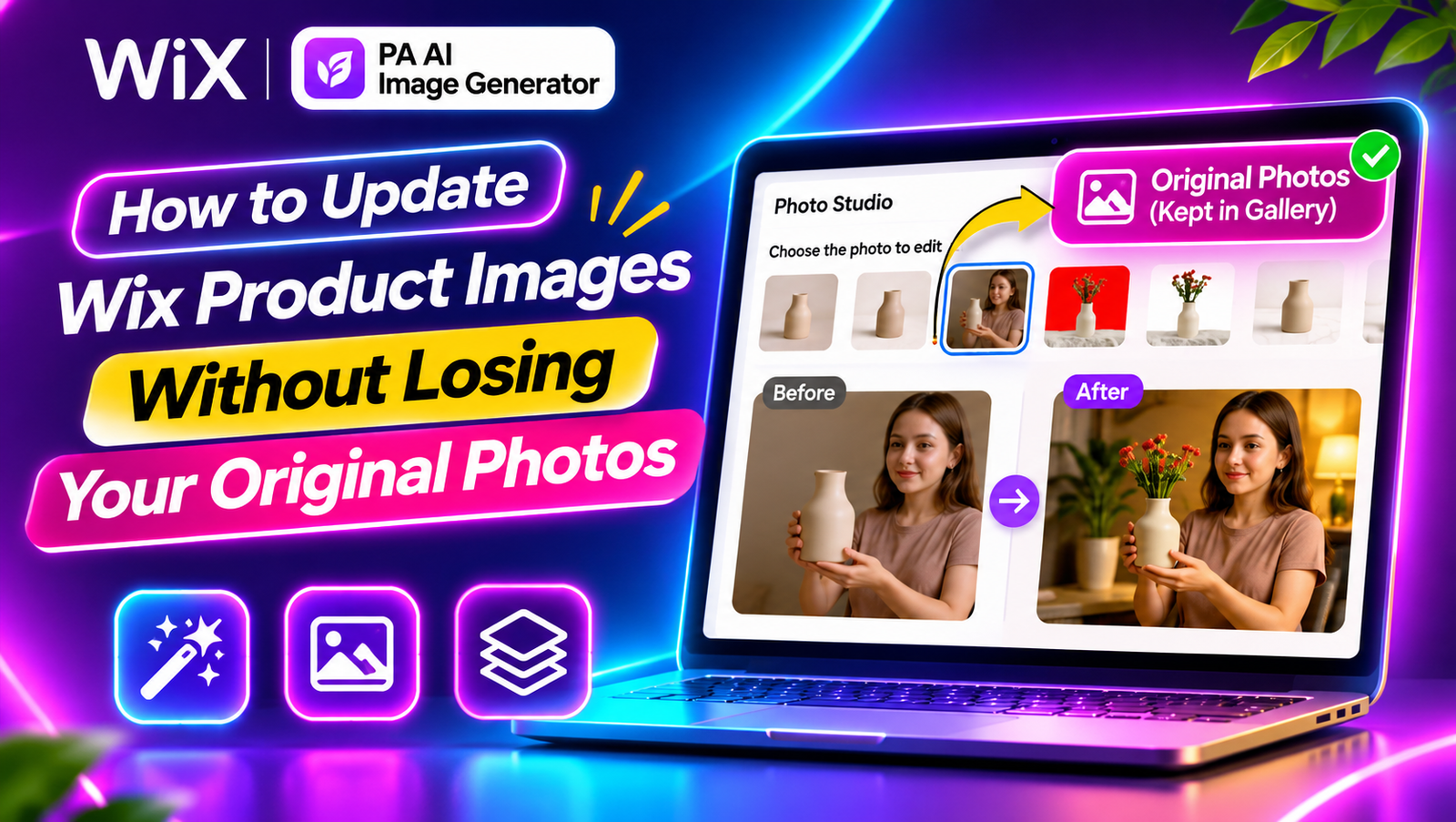
Fortunately, PA AI Image Generator provides tools for editing existing product images and publishing updated photographs while retaining the originals in the product gallery, according to its app interface.
In this guide, you’ll learn how to update Wix product images without losing your original photos, using a step-by-step tutorial with screenshots.
Why You Should Keep Original Product Photos
Keeping your original photographs is important even when you’re using AI-powered image editing.
Original images allow you to:
-
Compare AI-generated images with real product photographs.
-
Preserve accurate product colors and details.
-
Experiment with different background styles.
-
Create alternative lifestyle photographs.
-
Reuse original photographs for marketing.
-
Avoid depending on one edited version.
-
Maintain a reference for future product updates.
For example, a ceramic vase might look attractive against a dark studio background, but its original photograph is still useful when creating a clean catalog image or evaluating the accuracy of the AI-generated result.
Common Problems When Updating Wix Product Images
1. Accidentally replacing an important image
Merchants sometimes update a main product photograph without realizing which image will be displayed first.
2. Losing track of original photographs
When several edited versions are created, finding the initial photograph can become difficult.
3. AI-generated product differences
AI can occasionally change shapes, colors, textures, or other important details.
4. Inconsistent image galleries
Uploading photographs with unrelated backgrounds and styles can make a product gallery look disorganized.
5. Repeated manual editing
Editing photographs using separate software can require more time and effort.
Step 1: Open the Wix App Market

Step 2: Search for PA AI Image Generator

Step 3: Select PA AI Image Generator

Step 4: Install PA AI Image Generator

Step 5: Open the App in Your Wix Dashboard

Step 6: Select Your Product

Step 7: Open Photo Studio

Step 8: Review the Existing Product Photos

Step 9: Select a Photo and Choose the Background Color

Step 10: Change the Background to Yellow

What Is PA AI Image Generator?
PA AI Image Generator is an AI-powered product photography application available on the Wix App Market.
It helps merchants improve existing product photographs using background removal, background replacement, and AI-generated scenes.
Its visible features include custom background colors, text-based prompts, before-and-after comparisons, product photo selection, and publishing edited photographs.
The application also displays the message that original photographs remain in the product gallery when an edited image is published as the main photo.
Best Practices for Updating Product Photos Safely
Keep a separate backup
Maintain copies of important original photographs outside the product editing workflow.
Select the correct image
Check the selected thumbnail before applying an edit.
Preserve the original product appearance
Avoid AI changes that could misrepresent the item customers will receive.
Use consistent photography styles
Apply similar backgrounds and lighting to products within the same collection.
Check the final image before publishing
Compare edited photographs with the originals.
Verify the main product image
After publishing, check which photograph appears as the primary product image.
Avoid deleting original images unnecessarily
Original photographs may be useful for future edits, marketing campaigns, or reference purposes.
Original Product Photos vs. AI-Edited Photos
| Feature | Original photo | AI-edited photo |
|---|---|---|
| Main purpose | Document the actual product | Improve visual presentation |
| Background | Original surroundings | Can be removed or changed |
| Lifestyle scenes | Physically photographed | Can be AI-generated |
| Product accuracy | Reference image | Requires verification |
| Marketing use | Suitable | Suitable when accurate |
| Future editing | Valuable source | Additional creative version |
Both image types can be useful in a professional ecommerce product gallery.
How to Organize Your Wix Product Image Gallery
A well-organized product gallery helps customers understand your products.
One useful approach is to place a clear product photograph first, followed by important detail shots, alternative angles, and lifestyle images.
For example, a ceramic vase product gallery might contain a clean main image, close-ups showing the vase’s material, a side view, and a photograph displaying the vase in a realistic room.
The most important requirement is that every image accurately represents the product.
Common Mistakes to Avoid
-
Editing the wrong product photograph.
-
Confusing the selected image with the main image.
-
Assuming AI-generated images are always accurate.
-
Publishing without reviewing before-and-after results.
-
Deleting useful original photographs.
-
Using inconsistent backgrounds across product collections.
-
Failing to check the published product page.
-
Relying on gallery retention as a substitute for an independent backup.
Frequently Asked Questions
Can I update Wix product images without losing the originals?
The PA AI Image Generator interface states that original photographs remain in the product gallery when an edited image becomes the main photograph.
Does publishing an AI image replace my main product photo?
Yes. The button is labeled Publish to product (becomes main photo).
Can I edit a photograph other than the main image?
Yes. The Photo Studio screenshot shows multiple thumbnails, and the interface explains that you can choose which photograph to edit.
Can I remove product image backgrounds?
Yes. The application includes a Remove background feature.
Can I generate new lifestyle photos?
Yes. The AI scene feature supports generating new visual environments using text prompts.
Should I keep a separate backup of my product photographs?
Yes. A separate backup is a sensible precaution even when the app retains original images in the product gallery.
Does the app automatically restore a previous main image?
The supplied screenshots do not confirm an automatic version-history or one-click restore feature. They only confirm the interface’s stated behavior of retaining original photographs in the gallery.
Conclusion
Updating your Wix product photographs doesn’t have to mean giving up access to the originals.
With PA AI Image Generator, you can select an existing photograph, remove or replace its background, generate new lifestyle scenes, and publish an updated version directly from your Wix dashboard.
The app indicates that original photographs remain in the product gallery after an edited image becomes the main photo, allowing merchants to retain those images for reference and future use.
For additional security, always maintain independent backups of your most important product photographs.