HOW DROPSHIPPERS CAN UPGRADE SUPPLIER IMAGES WITH AI
Shopify Dropshipping Guide | AI Product Photography | 2026
Introduction
Product photography is one of the most important elements of a successful Shopify dropshipping store. Customers cannot physically inspect products before purchasing, so they rely on images to understand a product’s appearance, quality, and features.
However, many dropshippers face a common problem: supplier product images are often basic, repetitive, and visually unappealing.
Multiple stores may use the same supplier photographs, making it difficult to build a recognizable brand.
Hiring professional photographers and arranging physical photoshoots for every dropshipping product can also be expensive and impractical.
Fortunately, AI-powered product photography offers a more accessible alternative.
With PA AI Image Generator, Shopify merchants can use their existing product images as references and create attractive studio-style, lifestyle, seasonal, and other visual variations.
In this guide, we’ll explain how dropshippers can improve their supplier images using AI, with real screenshots from PA AI Image Generator and examples of the resulting product photography.
Why Supplier Images Are Not Always Enough
1. Multiple stores use identical photos
Dropshipping suppliers often provide standard photographs that many merchants use across different online stores.
When customers see the same photos repeatedly, it becomes harder for individual brands to distinguish themselves.
2. Poor image quality can reduce confidence
Low-resolution images, distracting backgrounds, and inconsistent lighting can make an otherwise good product appear less attractive.
3. Supplier images rarely match your branding
A Shopify store may use minimalist colors and a premium design, while supplier photographs feature bright backgrounds, mismatched styles, or excessive text.
4. Lifestyle photographs are often missing
Many suppliers provide only plain product shots, without showing the item in a realistic setting.
5. Product catalogs can look inconsistent
When products come from several suppliers, their photographs may use different backgrounds, framing, dimensions, and visual styles.
Improving image consistency can help create a more cohesive shopping experience.
What Is AI Product Image Enhancement for Dropshipping?
AI product image enhancement involves using a product reference photograph to create additional imagery in new styles or environments.
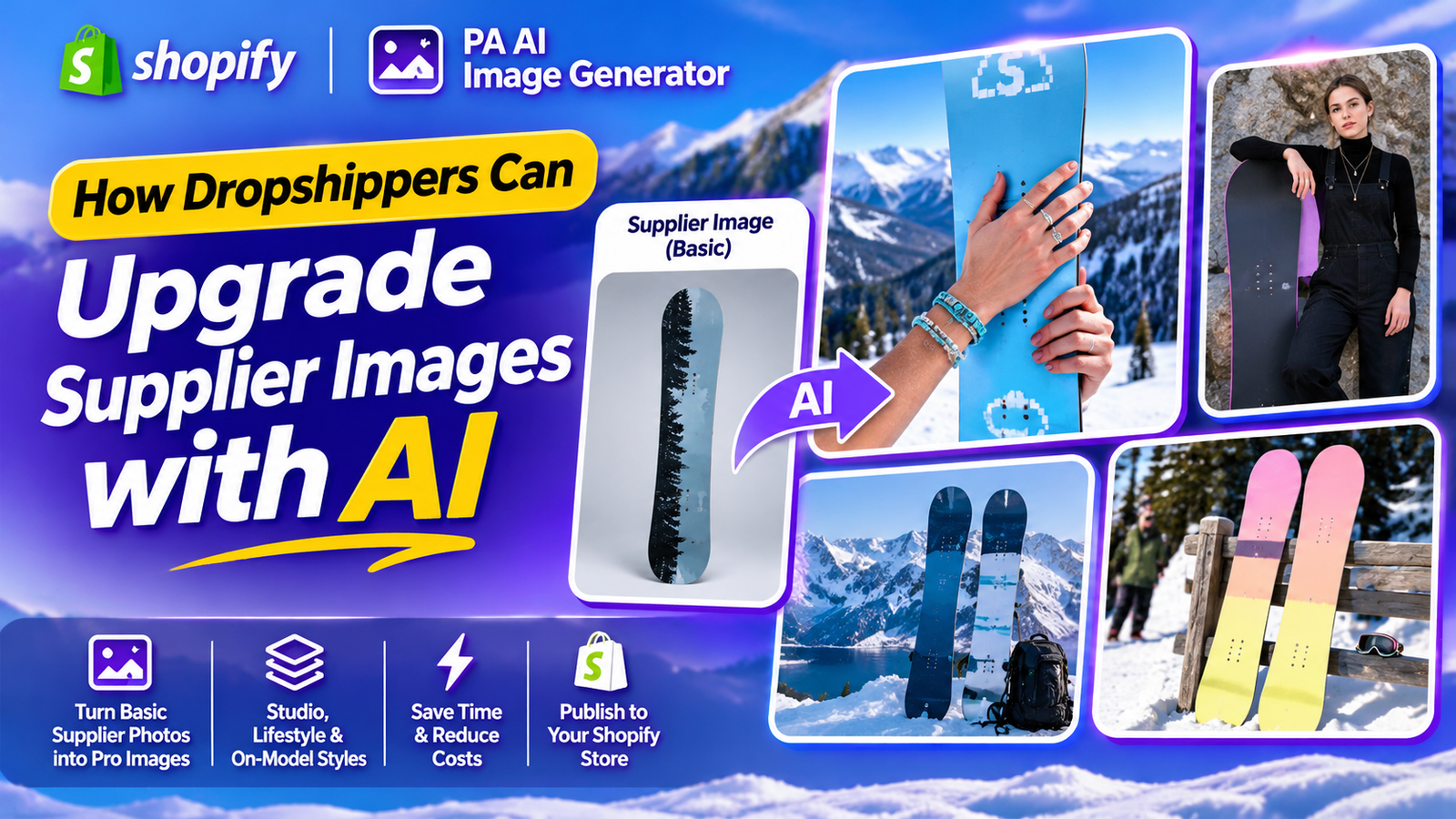
For example, a basic supplier photograph of a snowboard could become a studio-style image, a winter lifestyle scene, a detailed close-up, or an outdoor product composition.
The goal is to improve the presentation of the product while keeping its real appearance accurate.
Introducing PA AI Image Generator
PA AI Image Generator is a Shopify app designed to help merchants create product photography from existing catalog images.
The app offers tools for selecting individual products or entire collections, choosing visual presets, configuring generation settings, and reviewing the results in a gallery.
Key features for dropshippers
- Studio photography presets: Create clean product presentations.
- Lifestyle scenes: Place products in relevant visual environments.
- On-model options: Generate imagery featuring people and products.
- Bulk generation: Work with multiple Shopify products.
- Custom instructions: Guide the image style, composition, and background.
- Gallery management: Review and download generated assets.
- Shopify product publishing: Add approved images to your product listings.
App link: PA AI Image Generator — Shopify App Store
Supplier Images vs. AI-Enhanced Product Images
| Traditional supplier images | AI-generated visual variations |
|---|---|
| Often use generic backgrounds | Offer different studio and lifestyle settings |
| Frequently shared with other stores | Can use more distinctive compositions |
| Limited photographic styles | Multiple presets available |
| Inconsistent visual presentation | Can follow a coordinated visual direction |
| May not include lifestyle scenes | Can create additional lifestyle imagery |
| Usually based on real product photography | Product accuracy needs verification |
AI should complement accurate original product images, not replace the evidence customers need to judge the real product.
Step-by-Step Guide: How to Create Studio-Quality Product Photos on Shopify Using PA AI Image Generator
Follow these steps to generate product photography using the actual PA AI Image Generator interface.
Step 1: Search for PA AI Image Generator in the Shopify App Store
First, open the Shopify App Store.
Use the search bar to search for PA AI Image Generator.
The search results will display the app alongside other image generation and ecommerce photography applications.

Image 1: Search for PA AI Image Generator in the Shopify App Store.
Image explanation: The screenshot shows the Shopify App Store search results, with PA AI Image Generator highlighted. Its listing describes the app as a tool for creating studio and on-model AI product photography.
Click the app to open its listing.
Step 2: Install and Open PA AI Image Generator
On the app listing, review the description, available features, and pricing information.
Click Install if the app has not yet been installed, then approve the requested Shopify permissions.
Once installation is complete, select Open to launch the application.
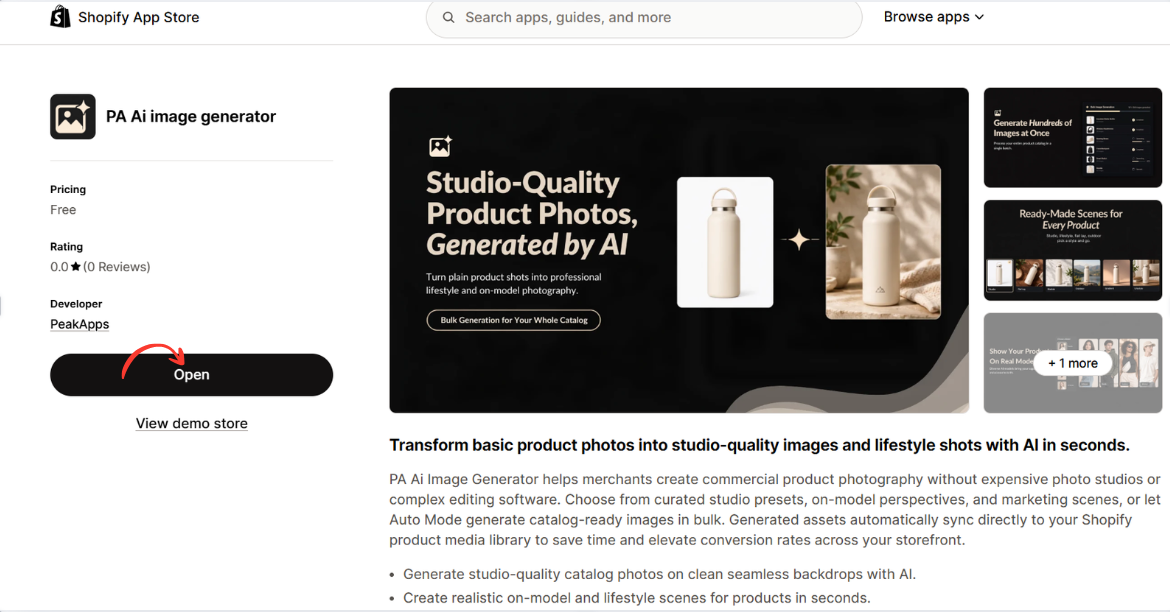
Image 2: Open PA AI Image Generator from its Shopify App Store listing.
Image explanation: The screenshot displays the app listing, including an illustration demonstrating how an ordinary product image can become a lifestyle-style photograph.
The Open button is highlighted, showing how merchants can access the installed app.
Step 3: Open the Generate Images Dashboard
After opening the app, locate Generate Images in the left navigation menu.
The image-generation workflow begins with selecting the products you want to use.
Click Browse Products to choose individual products from your Shopify catalog.
Alternatively, you can use Browse Collections to work with a collection.
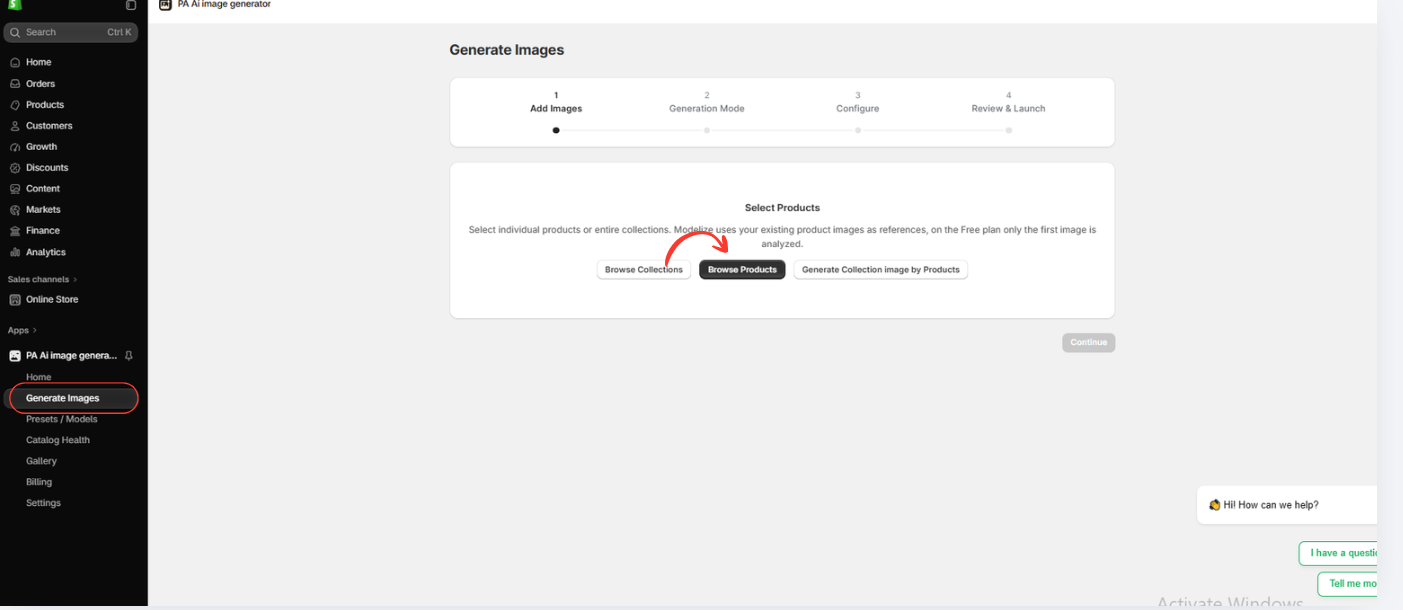
Image 3: Open Generate Images and select Browse Products.
Image explanation: The screenshot displays the image-generation interface with a progress indicator for selecting images, choosing a generation mode, configuring settings, and reviewing the generation request.
The Browse Products option allows merchants to use images already stored in Shopify.
The following steps use your actual Shopify inventory screenshot and previously shared PA AI Image Generator screenshots, displayed in the order of the workflow.
Step 4: Review Your Imported Products in Shopify Inventory
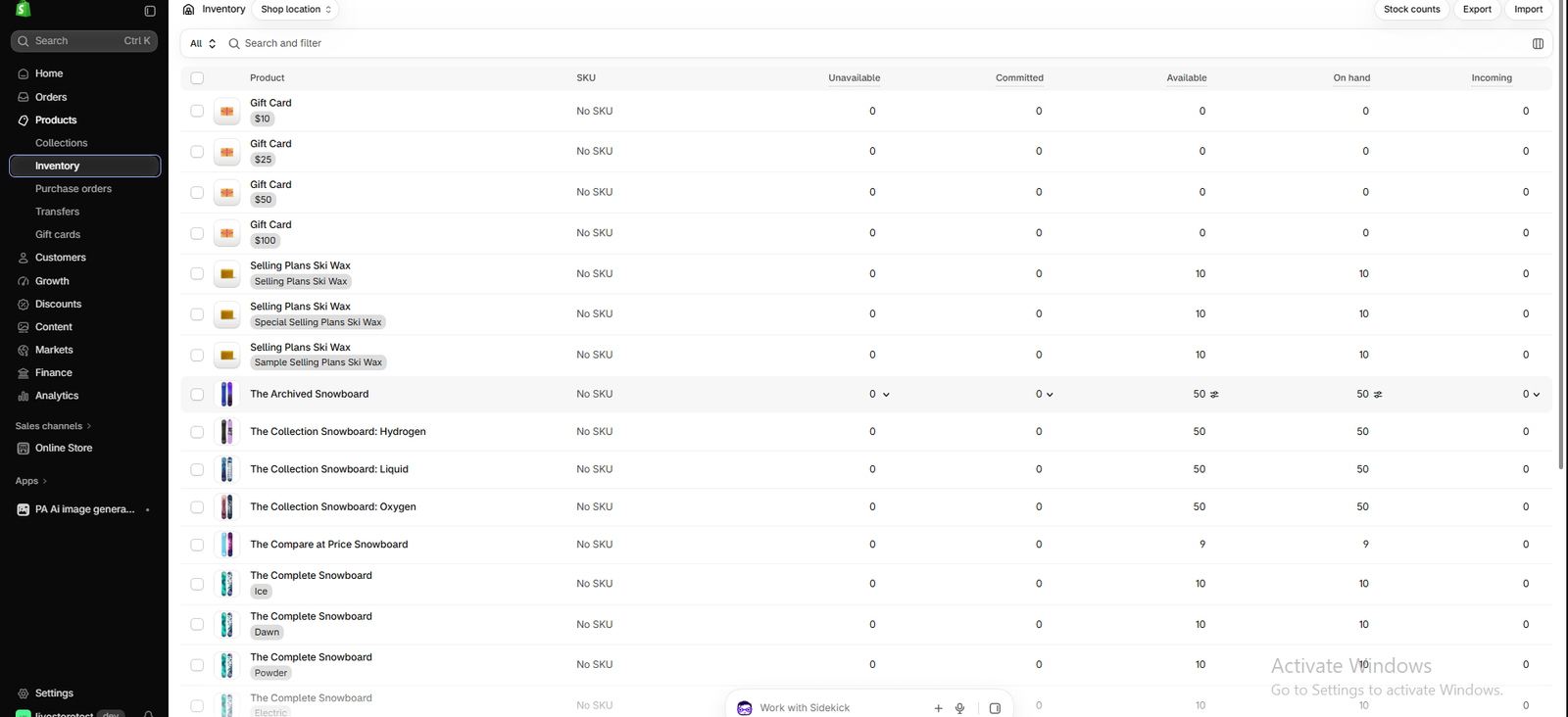
Image 1: Shopify Inventory dashboard showing products, variants, available stock, and inventory quantities.
Before upgrading supplier images, open Shopify Admin and navigate to Products → Inventory.
Your screenshot shows several catalog products, including Gift Card, Selling Plans Ski Wax, The Collection Snowboard: Hydrogen, The Collection Snowboard: Liquid, and The Compare at Price Snowboard.
The inventory dashboard also provides product and variant information, including SKU, available quantity, on-hand stock, and incoming inventory.
What this image explains: This is the starting point for checking which products already exist in the Shopify catalog. It is not an image editing screen, but it helps merchants identify the products they want to work on.
You can open the product details to review its existing supplier photographs before creating new visual variations.
Step 5: Open PA AI Image Generator
Once your products are available in Shopify, open Apps → PA AI Image Generator and click Generate Images.
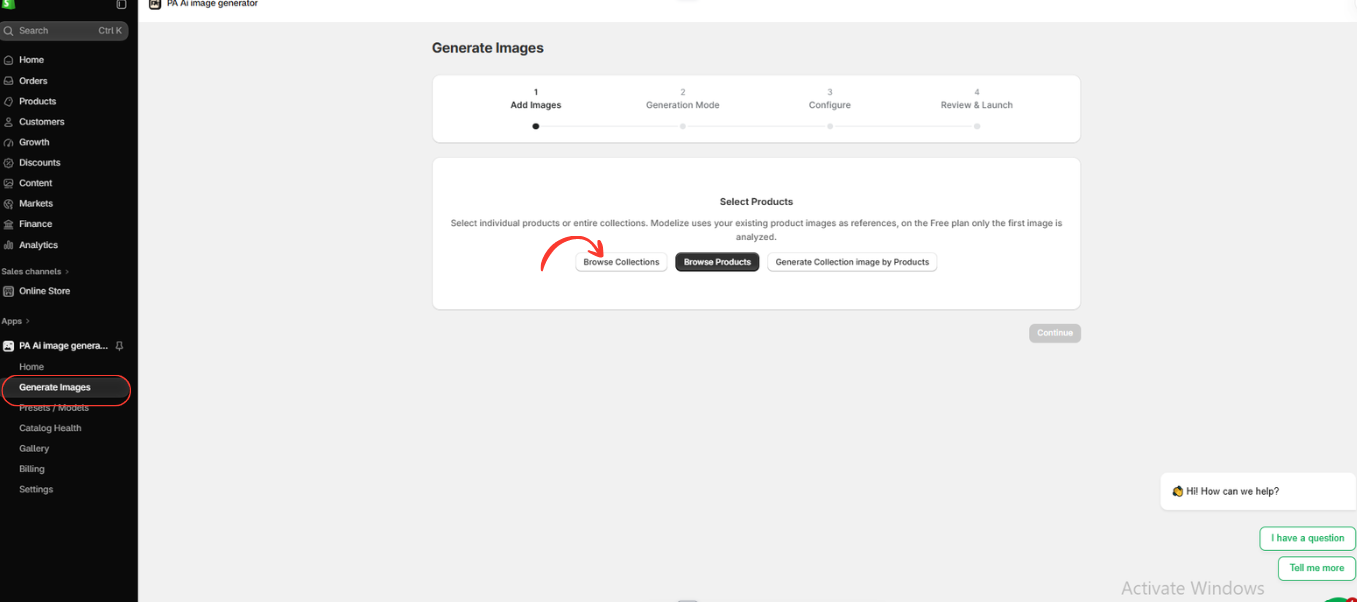
Image 2: The Generate Images section, where merchants can select individual products or collections.
Image explanation: The application displays a product selection screen with Browse Collections, Browse Products, and Generate Collection Image by Products.
For a single dropshipping product, choose Browse Products. To improve multiple supplier images in one workflow, choose Browse Collections.
This allows the app to use existing Shopify product images as references.
Step 6: Choose the Products You Want to Improve

Image 3: Select products from your Shopify catalog before starting AI image generation.
Image explanation: The screenshot shows the selection interface used to choose items from your store.
Find the appropriate product or collection, select it, and confirm your choice.
If you are a dropshipper selling clothing, jewelry, home decor, or accessories, select the products whose supplier photographs need improvement.
Step 7: Confirm Your Selected Products
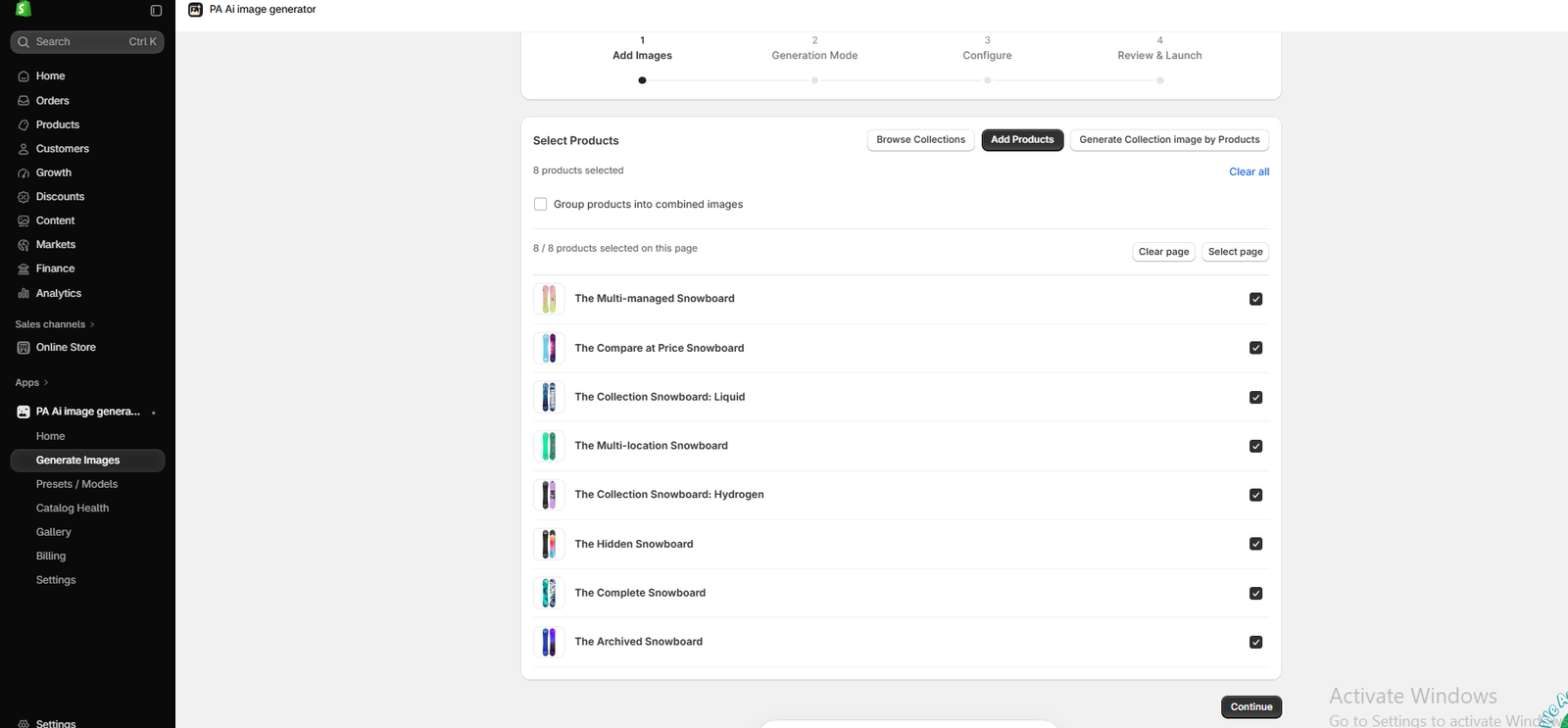
Image 4: Review the selected products in PA AI Image Generator before proceeding.
Image explanation: This screenshot shows the confirmation stage after product selection.
Review the products you have added to ensure the correct catalog images will be used.
You can also select multiple products to prepare a batch of images rather than repeating the same workflow individually.
Click Continue when your selection is complete.
Step 8: Choose AI Image Generation Mode

Image 5: Choose Auto Mode or a preset-based photography workflow.
Image explanation: The application offers Auto Mode and Choose Presets.
Auto Mode lets AI select a visual direction, while Choose Presets gives you more control over the style of the finished photographs.
For dropshipping stores that want a consistent branded catalog, Choose Presets is particularly useful.
Step 9: Select Professional Photography Presets

Image 6: Browse different photography presets for Shopify products.
Image explanation: The preset library includes categories for different photography compositions and product industries.
For example, a merchant might choose studio images for product listings, lifestyle images for advertising, or on-model photographs for apparel.
Choose styles that match your store’s brand identity and the real product.
Step 10: Configure Your Image Generation Settings

Image 7: Configure background settings, aspect ratio, image format, and publishing preferences.
Image explanation: The settings screen gives merchants control over the output format and other generation options.
For dropshipping products, consider adding this custom instruction:
Create a professional ecommerce product photograph using the existing product image as a reference. Preserve the product’s exact shape, color, branding, and important details. Use realistic studio lighting, a clean background, and a premium composition. Do not invent features or modify the product design.
Choose an appropriate aspect ratio, review the resolution settings, and preserve existing product images where possible.
Step 11: Monitor the Image Generation Process

Image 8: Gallery dashboard showing image generation jobs and their processing status.
Image explanation: The Gallery lists generation jobs, their status, and the number of completed images.
The example screenshot shows a job requesting 32 images, along with earlier completed and failed jobs.
Merchants can use this screen to track bulk image generation and locate the results once processing is complete.
Frequently Asked Questions
1. Can I use AI to improve basic dropshipping supplier images?
Yes. You can use existing product photographs as references to create new studio-style and lifestyle compositions.
2. Do I need to hire a photographer?
Not necessarily. PA AI Image Generator lets you create additional product visuals without arranging a physical photoshoot for every image.
3. Can I generate images for multiple Shopify products?
Yes. The app allows you to select multiple products or collections for image generation.
4. Can I create lifestyle photographs from basic product images?
Yes. Lifestyle presets can create scenes that place products in relevant environments.
5. Can I create on-model product photographs?
Yes. The app offers On Model photography presets for suitable products.
6. Will AI always preserve the exact appearance of my products?
No. AI may change logos, colors, proportions, or design details. Always review results against the original product.
7. Can I download images before publishing them?
Yes. The Gallery provides image download and publishing controls.
8. Are AI-enhanced images suitable for Shopify product pages?
They can be, provided they accurately represent the product and meet applicable platform requirements.
Conclusion
Upgrading supplier product images is a practical way for dropshippers to improve their Shopify store’s visual presentation.
Instead of relying entirely on basic supplier photographs, merchants can use AI to create additional studio-style images, lifestyle scenes, detailed close-ups, and seasonal visuals.
With PA AI Image Generator, merchants can select products from their Shopify catalog, choose photography presets, configure generation settings, and review the resulting images before publishing them.
As the real examples in this guide demonstrate, different compositions can make a single product more visually engaging across product pages, collection banners, and marketing campaigns.
By combining AI-generated imagery with accurate original product photographs, dropshippers can develop a more consistent and professional-looking brand without arranging a traditional photoshoot for every visual variation.
Upgrade your Shopify product photography with AI.Explore PA AI Image Generator on the Shopify App Store




