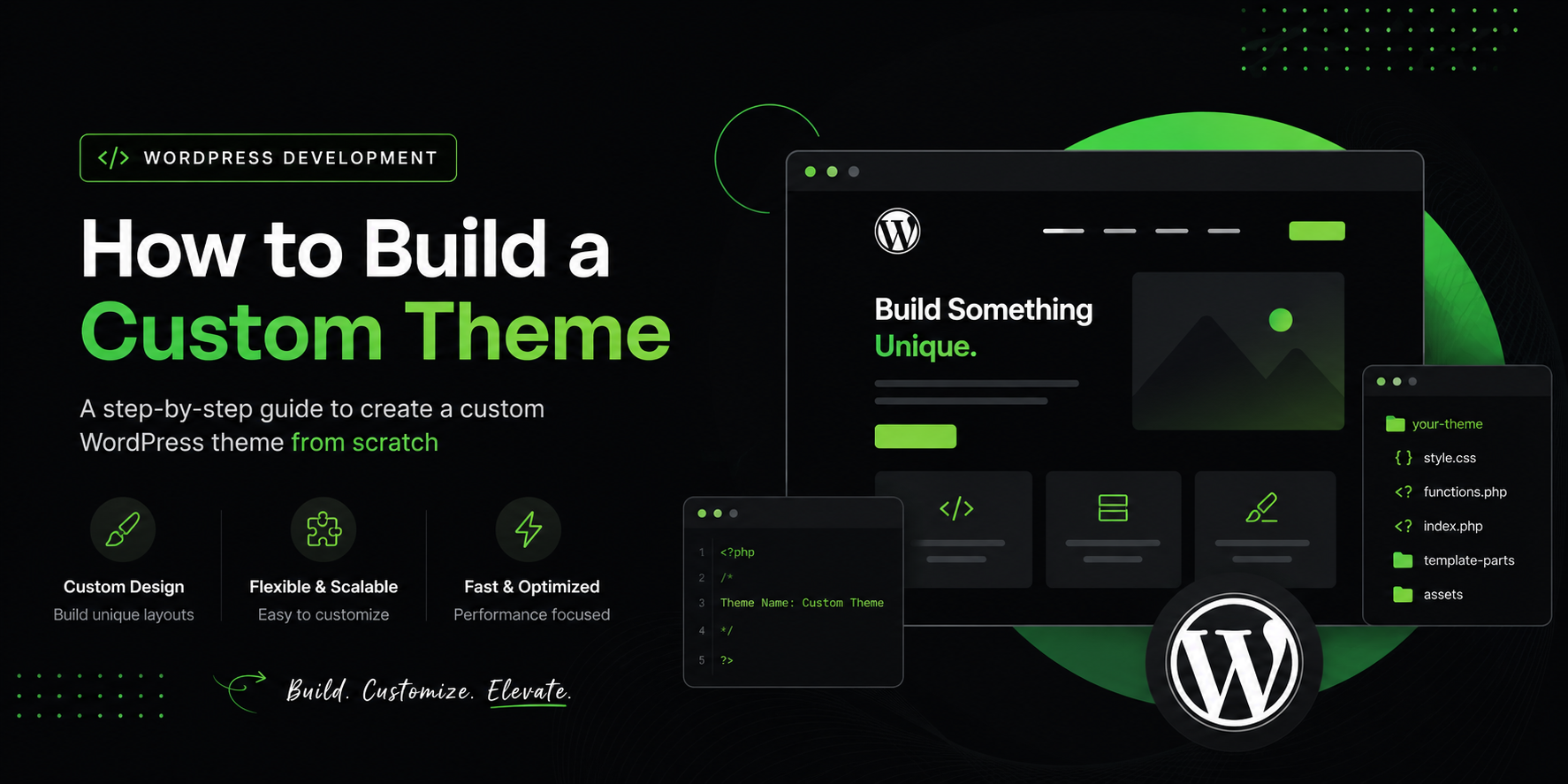
WordPress Development: How to Build a Custom Theme
So you want to build your own WordPress theme from scratch. Honestly, that is one of the best decisions you can make as a developer. Instead of relying on someone else’s theme that is bloated with features you will never use, you get to build exactly what you need. Clean, fast, and completely yours.
In this blog, I am going to walk you through the whole process in plain language. No jargon overload, no confusing shortcuts. Just a straightforward guide that actually makes sense.
First Things First What Even Is a WordPress Theme?
Think of a WordPress theme as the outfit your website wears. The content, the posts, the pages all of that lives in your database. The theme is what decides how that content looks when someone opens your site in a browser.
A custom theme gives you full control. You decide the layout, the fonts, the colors, how the header looks, where the sidebar goes, everything. You are not limited by what a theme developer thought was a good idea three years ago.
What You Need Before You Start
Before writing a single line of code, let us make sure you have the right setup.
You need a local development environment. This means running WordPress on your own computer so you can build and test things without breaking a live website. Tools like XAMPP, MAMP, or LocalWP work great for this. LocalWP is honestly the easiest one if you are just getting started you install it, create a site, and you are good to go in about five minutes.
You also need a code editor. VS Code is the most popular one right now and for good reason. It is free, fast, and has tons of extensions that make WordPress development much easier.
Basic knowledge of HTML, CSS, and PHP will help a lot. You do not need to be an expert but you should know what a PHP tag looks like and how a CSS selector works. If you know those things, you are ready.
Understanding the WordPress Theme Folder Structure
Every WordPress theme lives inside the wp-content/themes folder. When you create a custom theme, you create a new folder in there and give it a name. Let us say you name it mytheme.
Inside that folder, at the very minimum, you need two files to make WordPress recognize your theme. Those two files are style.css and index.php.
The style.css file is not just for styles. It also holds important information about your theme in the form of a comment block at the top. This comment block is what tells WordPress the name of your theme, who made it, what version it is, and so on.
The index.php file is the fallback template. If WordPress cannot find a more specific template file for what it needs to display, it falls back to index.php. Think of it as the default.
Once you have those two files, your theme will show up in the WordPress dashboard under Appearance and Themes. You can activate it from there.
The style.css Comment Block Do Not Skip This
Open your style.css file and at the very top, add this comment block. This is not optional, WordPress reads this to identify your theme.
It looks something like this in plain terms you write a comment that says Theme Name followed by your theme name, then Author with your name, then Description with a short line about what the theme is, and then Version with something like 1.0. WordPress reads all of this and displays it in the dashboard.
This is a small step but people skip it and then wonder why their theme is not showing up properly.
Breaking Your Theme Into Template Files
Here is where things get interesting. WordPress uses a hierarchy of template files to decide which file to use when loading different parts of your site. Learning this hierarchy is genuinely one of the most useful things you can do as a WordPress developer.
Let me break down the most common template files you will be working with.
header.php This holds everything that goes at the top of your site. Your logo, navigation menu, and the opening HTML tags all live here. Every page on your site will include this file.
footer.php Same idea but for the bottom of your site. Your copyright text, footer links, closing HTML tags, and the wp_footer() function call go here. That wp_footer() call is important because WordPress and plugins use it to inject scripts.
sidebar.php If your site has a sidebar with widgets, this is where it lives.
single.php WordPress uses this file when someone opens a single blog post.
page.php This one handles static pages like your About page or Contact page.
archive.php When someone visits a category or tag page that lists multiple posts, WordPress uses this template.
search.php For displaying search results.
404.php — The page people see when they land on a URL that does not exist.
functions.php This is a special file. It is not a template in the visual sense but it is where you register menus, add theme support for features, enqueue scripts and styles, and hook into WordPress functionality. This file is like the brain of your theme.
You do not need all of these on day one. Start with header.php, footer.php, index.php, single.php, and functions.php. You can add the rest as you go.
Using get header() and get footer()
Once you have your header.php and footer.php files set up, you call them in other template files using two simple functions.
At the top of index.php or single.php, you write get_header() and WordPress automatically pulls in everything from header.php. At the bottom, you write get_footer() and it pulls in footer.php.
This is clean and efficient. You write your header and footer once and reuse them everywhere. If you need to change something in the header, you change it in one file and it updates across your whole site automatically.
The WordPress Loop The Heart of Everything
Okay, this is the big one. The WordPress Loop is the mechanism that retrieves posts from your database and displays them. Almost every template that shows content uses the loop.
In plain terms here is how it works. You ask WordPress if there are posts to show. If yes, you go through each post one by one and output whatever you want to display the title, the content, the date, the author. When you are done with all the posts, the loop ends.
Inside the loop you have access to functions like the title() which outputs the post title, the content() which outputs the full content, the excerpt() for a short summary, the permalink() for the URL of the post, and the date() for when it was published.
These are called template tags and they are one of the things that make WordPress development so clean. You do not have to write database queries yourself. WordPress handles all of that and gives you these simple functions to use.
Setting Up Your functions.php
Your functions.php file is where a lot of important setup happens. Let me walk through some things you will almost certainly want to do in here.
Adding Theme Support
WordPress has features that themes need to explicitly opt into. Two of the most common ones are post thumbnails (featured images) and custom menus.
To enable featured images, you add a function that runs on the after setup theme hook and inside it you call add theme support with the string post-thumbnails. Now your posts and pages will have the featured image option in the editor.
Registering Navigation Menus
To register a menu, you use register nav menus inside the same after setup theme function. You give each menu location a key and a label. After this, you can go to Appearance and Menus in the dashboard to assign menus to those locations. In your header.php, you then use wp nav menu to display the menu wherever you want it.
Enqueueing Scripts and Styles
This one trips up a lot of beginners. In WordPress, you do not just link to CSS files and JavaScript files directly in your header. You register and enqueue them through functions.php using wp enqueue style and wp enqueue script. This is the WordPress way of doing things and it ensures scripts load in the right order and that plugins can interact with them properly.
Making Your Theme Widgetized
Widgets are the little blocks you can drag and drop in the sidebar or footer from the WordPress dashboard. To use them in your theme, you need to register widget areas in functions.php using register sidebar.
You give each widget area a name, an ID, and some HTML wrapper code that goes before and after each widget. Then in your sidebar.php or footer.php, you call dynamic_sidebar with the ID you registered and WordPress outputs all the widgets the user has placed there.
This is a small thing but it makes your theme feel much more polished and user-friendly.
Template Parts Keeping Your Code Clean
As your theme grows, you will find yourself repeating chunks of HTML in multiple template files. WordPress has a clean solution for this called template parts.
You create a folder called template parts inside your theme folder and put reusable pieces of markup in there. For example, you might have a file called content.php that holds the HTML for how a single post looks in a list. Then in index.php and archive.php, instead of writing that HTML twice, you call get template part and pass it the path to that file.
This keeps things DRY which stands for Don’t Repeat Yourself and makes future edits much easier.
Adding Custom Page Templates
Here is a cool thing about WordPress. You can create completely custom layouts for specific pages without touching the theme’s main page.php file.
You create a new PHP file in your theme folder, let us say full-width.php. At the top of that file, inside a comment, you write Template Name followed by whatever you want to call it, like Full Width Page. Once you do that, WordPress recognizes it as a custom template and it shows up as an option in the Page Attributes section when editing a page in the dashboard.
This is super useful when you have a landing page or a contact page that needs a different layout from the rest of the site.
Enqueuing Google Fonts and Custom CSS
If you want to use Google Fonts, you enqueue them just like any other stylesheet. You go to Google Fonts, grab the URL for the font you want, and register it in functions.php using wp_enqueue_style. Give it a handle name and paste in the URL. Now you can use that font in your CSS and it will load properly on every page.
For your main stylesheet, you enqueue style.css the same way, using get stylesheet uri() to automatically get the path to your theme’s style.css file.
Making Your Theme Responsive
In 2024 and beyond, a non-responsive theme is basically not a theme. You need your site to look good on phones, tablets, and desktops.
The good news is this is handled almost entirely in your CSS using media queries. You write your base styles for desktop and then add media queries that adjust layouts, font sizes, padding, and anything else that needs to change on smaller screens.
A simple approach is to make your layout use CSS Flexbox or CSS Grid for the main structure. These are modern CSS tools that handle a lot of the responsive behavior naturally and are much easier to work with than old float based layouts.
The Customizer Giving Users Control
The WordPress Customizer is the live preview panel you see when you go to Appearance and Customize. You can add your own settings to it through functions.php using the customize register hook.
For example, you might want to let the site owner change the header background color, upload a custom logo, or change the footer text all without touching code. You register a section, then add settings and controls inside that section.
This is what separates a theme you built for yourself from a theme that other people can actually use comfortably.
Testing Your Theme
Before you call your theme done, test it properly.
Install the Theme Check plugin. It scans your theme and flags any issues based on WordPress coding standards. It is like a spell checker but for your theme code.
Also test with the WordPress Theme Unit Test data. This is a set of sample content you can import into your local WordPress install that covers all kinds of edge cases — posts with long titles, posts with no featured image, pages with nested comments, and so on. It helps you find layout breakdowns you would never notice with just a couple of test posts.
Check it in multiple browsers too. Chrome, Firefox, and Safari can all render things slightly differently.
Child Themes A Quick Note
If you are building on top of an existing theme rather than starting from scratch, you should use a child theme. A child theme inherits everything from the parent theme but lets you override specific files and add your own CSS and PHP without modifying the parent directly. This means when the parent theme gets updated, your customizations are not wiped out.
But if you are building from scratch as we have been discussing in this whole blog, you do not need a child theme. Your theme is already the parent.
Where to Go From Here
Once you have a working custom theme, there is a lot more you can explore.
You can look into the WordPress REST API which lets you use WordPress as a backend while building the front end with JavaScript frameworks like React. This is called a headless WordPress setup and it is becoming increasingly popular.
You can also look into the block editor and Full Site Editing which is WordPress’s newer approach where the entire site including the header and footer can be edited through the Gutenberg block editor. Building block based themes works a bit differently from classic themes but many of the core concepts are the same.
Custom post types and custom fields are another rabbit hole worth going down. They let you create structured content beyond just posts and pages things like portfolios, testimonials, events, and products.
Wrapping Up
Building a custom WordPress theme from scratch sounds intimidating at first but once you understand the structure, it starts to feel really logical. You have your template files, you have the loop, you have functions.php wiring everything together, and you have CSS bringing it all to life.
The best way to learn this is to just build something. Start simple. Make a theme with a homepage, a blog page, and a single post view. Get those working properly. Then keep adding pieces.
WordPress has been around for a long time and the documentation on wordpress.org is genuinely good. The developer handbook is thorough and well organized. Whenever you get stuck, that should be your first stop.
You have got all the pieces now. Go build something.