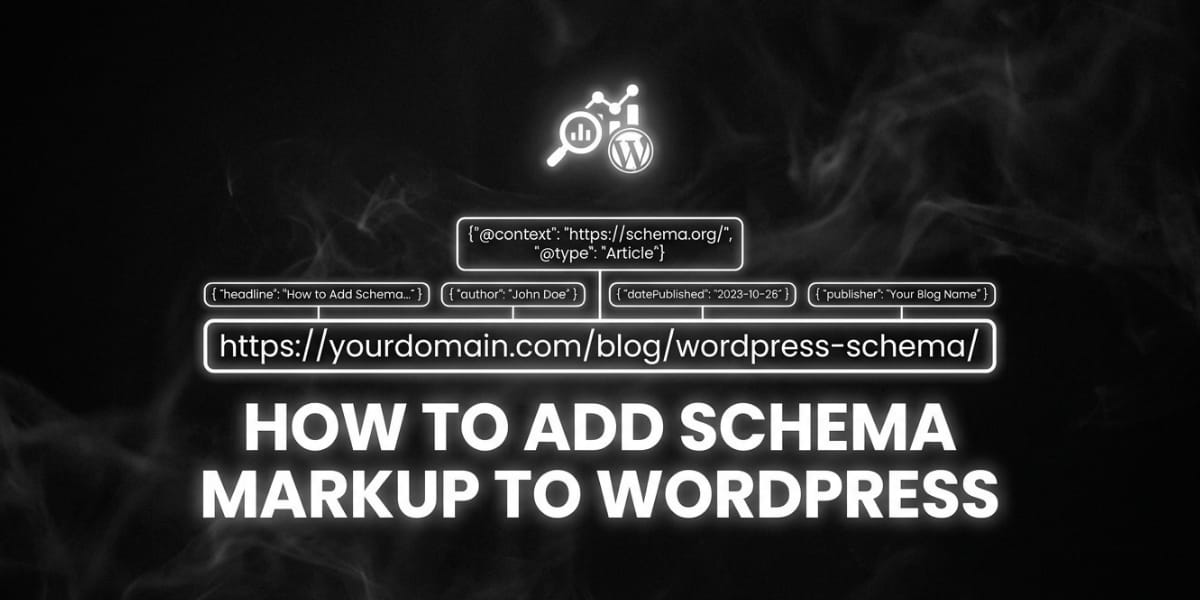
How to Add Schema Markup to WordPress
If you’ve ever searched for a recipe and seen star ratings, cooking time, and calorie counts right in the search results, you’ve seen schema markup in action. Schema markup is one of the most powerful yet underutilized tools in a website owner’s SEO toolkit. It doesn’t just help search engines understand your content it can transform how your pages appear in search results, often leading to higher click-through rates and better visibility against competitors.
For WordPress users, adding schema markup is more accessible than ever, thanks to a growing ecosystem of plugins and built in theme features. In this guide, we’ll break down exactly what schema markup is, why it matters for SEO, and the various methods you can use to implement it on your WordPress site whether you’re a complete beginner or comfortable editing code.
What Is Schema Markup?
Schema markup (also called structured data) is a standardized vocabulary of tags, maintained by Schema.org, that you add to your website’s HTML to help search engines understand the context and meaning of your content. Rather than simply crawling text, search engines use schema markup to identify specific elements like:
- Product prices and availability
- Recipe ingredients and cooking times
- Article authors and publish dates
- Business hours and locations
- Star ratings and reviews
- Frequently asked questions
- Event dates and ticket information
This structured data is typically written in JSON LD (JavaScript Object Notation for Linked Data) format, which is Google’s preferred method, though older implementations sometimes use Microdata or RDFa.
Why Schema Markup Matters for SEO
Schema markup itself is not a direct ranking factor Google has confirmed this multiple times. However, its impact on SEO performance is significant for several indirect reasons:
1. Rich Results and Enhanced SERP Appearance
Schema markup enables “rich results” — the enhanced search listings that include star ratings, images, pricing, and other visual elements. These rich results stand out visually against plain blue-link listings, often leading to significantly higher click-through rates.
2. Improved Content Understanding
Search engines rely on context to accurately categorize and rank content. Schema markup removes ambiguity, explicitly telling search engines “this is a recipe,” “this is a product,” or “this is a review,” rather than making them infer it from surrounding text.
3. Voice Search and Featured Snippet Opportunities
As voice search and AI generated search summaries become more prevalent, structured data helps search engines extract clear, concise answers from your content, increasing your chances of being featured in position zero or read aloud by voice assistants.
4. Better Local SEO Performance
For businesses with physical locations, LocalBusiness schema helps search engines display accurate business hours, addresses, and contact information directly in search results and Google Maps listings.
5. Increased Trust and Credibility
Rich results featuring star ratings, review counts, or verified business information can increase user trust before they even click through to your site, improving both CTR and downstream conversion rates.
Types of Schema Markup Commonly Used on WordPress Sites
Before diving into implementation, it helps to understand which schema types are most relevant depending on your site’s purpose:
- Article/BlogPosting: For blog posts and news content, marking up headlines, authors, and publish dates.
- Product: For e commerce listings, including price, availability, and reviews.
- Review/AggregateRating: For displaying star ratings in search results.
- FAQ: For pages with question and answer content, often triggering expandable FAQ rich results.
- HowTo: For step by step guides and tutorials.
- Recipe: For food blogs, including prep time, ingredients, and nutrition information.
- LocalBusiness: For businesses with physical locations.
- Organization: For general company/brand information, often used sitewide.
- BreadcrumbList: For displaying breadcrumb navigation in search results.
- Event: For time based events, including dates, locations, and ticket details.
Method 1: Using an SEO Plugin (Recommended for Most Users)
The easiest and most beginner friendly way to add schema markup to WordPress is through a dedicated SEO plugin. Most popular plugins now include built-in schema generation, eliminating the need to write any code.
Yoast SEO
Yoast SEO automatically generates basic schema markup for your site, including Organization or Person schema, Article schema for blog posts, and BreadcrumbList schema. To customize it further:
- Go to Yoast SEO > Settings in your WordPress dashboard.
- Under the Site Representation section, choose whether your site represents an organization or a person, and fill in relevant details like logo and social profiles.
- On individual posts, scroll to the Yoast SEO meta box below the content editor and check the Schema tab to select the specific page type (Article, Product, FAQ, etc.).
- For FAQ or How-To content, Yoast provides dedicated Gutenberg blocks (the FAQ block and How-To block) that automatically generate the corresponding schema when you fill in the content.
Rank Math
Rank Math is particularly well regarded for its schema capabilities, offering more built in schema types than Yoast in its free version.
- Go to Rank Math > Titles & Meta to configure sitewide schema defaults.
- On individual posts, use the Schema tab in the Rank Math meta box to choose from over a dozen pre-built schema types, including Product, Recipe, Event, Course, and more.
- Rank Math also offers a visual Schema Generator that lets you map specific fields (like price or rating) directly to your content without touching code.
- Use the built-in Schema Markup Validation tool to test your implementation directly within the plugin before publishing.
All in One Schema Rich Snippets
This dedicated schema plugin focuses exclusively on structured data, offering a straightforward interface for adding Review, Recipe, Event, Product, and Software Application schema without the broader SEO feature set of Yoast or Rank Math.
Method 2: Using a Dedicated Schema Plugin
If your primary SEO plugin doesn’t cover a specific schema type you need, dedicated schema plugins can fill the gap:
- Schema & Structured Data for WP: Offers granular control over more than 30 schema types with custom field mapping.
- WP Schema Pro: A premium plugin built specifically for advanced schema implementation across multiple content types simultaneously.
- Schema Pro by Brainstorm Force: Integrates well with page builders like Elementor and Beaver Builder for visual schema configuration.
These tools are especially useful for niche content types not well-covered by general SEO plugins, such as Course schema for online education sites or JobPosting schema for career pages.
Method 3: Manually Adding JSON LD Schema Markup
For users comfortable with code, or for schema types not supported by plugins, manually adding JSON LD markup offers complete control. This method involves inserting a <script> tag containing structured data directly into your page’s HTML.
Step 1: Generate Your Schema Markup
Use Google’s Structured Data Markup Helper or a third-party generator like TechnicalSEO.com’s Schema Markup Generator to build your JSON-LD code. For example, a basic Article schema might look like this:
{
  "@context": "https://schema.org",
  "@type": "Article",
  "headline": "How to Add Schema Markup to WordPress",
  "author": {
    "@type": "Person",
    "name": "Your Name"
  },
  "datePublished": "2026-07-24",
  "image": "https://www.yoursite.com/image.jpg"
}
Step 2: Add the Code to Your Site
You have several options for inserting this code:
- Using the WordPress Custom HTML block: Add a Custom HTML block within the Gutenberg editor on the specific post or page, and paste your JSON-LD code wrapped in
<script type="application/ld+json">tags. - Using your theme’s functions.php file: For sitewide schema (like Organization schema), you can hook the code into your theme’s
<head>section using thewp_headaction. This requires editing theme files, so always use a child theme to avoid losing changes during updates. - Using a header/footer plugin: Plugins like Insert Headers and Footers or WPCode allow you to add custom code snippets to specific pages or sitewide without touching your theme files directly.
Step 3: Validate Your Markup
After implementation, always test your schema using Google’s Rich Results Test tool or Schema.org’s Validator. These tools will flag missing required fields, syntax errors, or incompatible schema types before they cause issues in Search Console.
Method 4: Page Builder Integration
If you use a page builder like Elementor, Divi, or Beaver Builder, many of these tools now offer built in or add on schema functionality:
- Elementor Pro integrates with several SEO plugins to apply dynamic schema based on the widgets and content used on a page.
- Divi offers theme builder modules that can be configured to output structured data for specific templates, such as blog archives or product pages.
These integrations are particularly useful for maintaining consistent schema across templated pages, such as product listings or team member profiles, without manually coding each instance.
Best Practices for Schema Markup Implementation
1. Only Mark Up Visible Content
Google’s guidelines specify that structured data should accurately reflect the content visible on the page. Marking up information that isn’t actually displayed to users (sometimes called “spammy structured data”) can result in manual penalties.
2. Use the Most Specific Schema Type Available
Rather than using a generic “Thing” or “CreativeWork” type, choose the most specific applicable schema, such as “BlogPosting” instead of “Article” for blog content, or “SoftwareApplication” instead of “Product” for app listings.
3. Avoid Duplicate or Conflicting Schema
Running multiple SEO plugins simultaneously, or combining plugin generated schema with manually added JSON-LD for the same content type, can create duplicate or conflicting markup. Always audit your page source code to confirm only one instance of each schema type exists per page.
4. Keep Schema Updated
If you change pricing, availability, or ratings on your site, ensure your schema markup reflects those changes. Outdated schema like showing a product as “in stock” when it’s sold out can lead to Google penalizing or ignoring your structured data.
5. Monitor Performance in Google Search Console
Search Console’s Enhancements section reports on how Google is interpreting your structured data, flagging any errors or warnings for specific schema types like Products, FAQs, or Breadcrumbs. Regularly reviewing this report helps you catch issues before they impact your rich result eligibility.
Common Schema Markup Mistakes to Avoid
- Forgetting required properties Each schema type has specific required and recommended fields; missing required fields will prevent rich results from displaying.
- Using schema plugins without configuring them Simply activating a plugin doesn’t guarantee accurate schema; many require manual field mapping to work correctly.
- Applying irrelevant schema types Adding Recipe schema to a blog post about recipes in general (rather than an actual recipe) misrepresents your content and can trigger manual review.
- Ignoring mobile rendering Ensure structured data renders correctly on mobile versions of your site, as Google primarily uses mobile first indexing.
- Not testing after theme or plugin updates Updates can sometimes break custom code implementations, so periodic re testing is important.
How to Test and Monitor Your Schema Markup
Once your schema is live, ongoing monitoring ensures it continues to function properly:
- Google Rich Results Test: Enter any URL to see exactly which rich results Google can detect on that page.
- Schema.org Validator: Offers a more technical, syntax level validation of your JSON LD code.
- Google Search Console’s Enhancement Reports: Track valid, warning, and error counts for each schema type over time.
- Regular manual spot checks: Periodically view your page source (right-click > View Page Source, then search for “application/ld+json”) to confirm your schema is present and accurate.
Final Thoughts
Schema markup is a foundational technical SEO practice that helps bridge the gap between how humans read your content and how search engines interpret it. While it may not directly boost your rankings, its influence on click through rates, rich result eligibility, and overall search visibility makes it one of the highest value technical improvements you can make to a WordPress site.
For most users, a well configured SEO plugin like Yoast SEO or Rank Math will handle the majority of schema needs without requiring any code. For more advanced or niche use cases, dedicated schema plugins or manual JSON LD implementation offer greater flexibility and control. Whichever method you choose, remember to validate your markup regularly, keep it aligned with your visible content, and monitor performance through Google Search Console to ensure your structured data continues working in your favor.
Taking the time to properly implement schema markup today can pay off significantly as search engines increasingly rely on structured data to power rich results, voice search, and AI driven search summaries.