HOW TO REMOVE DISTRACTING BACKGROUNDS FROM WIX PRODUCT PICTURES
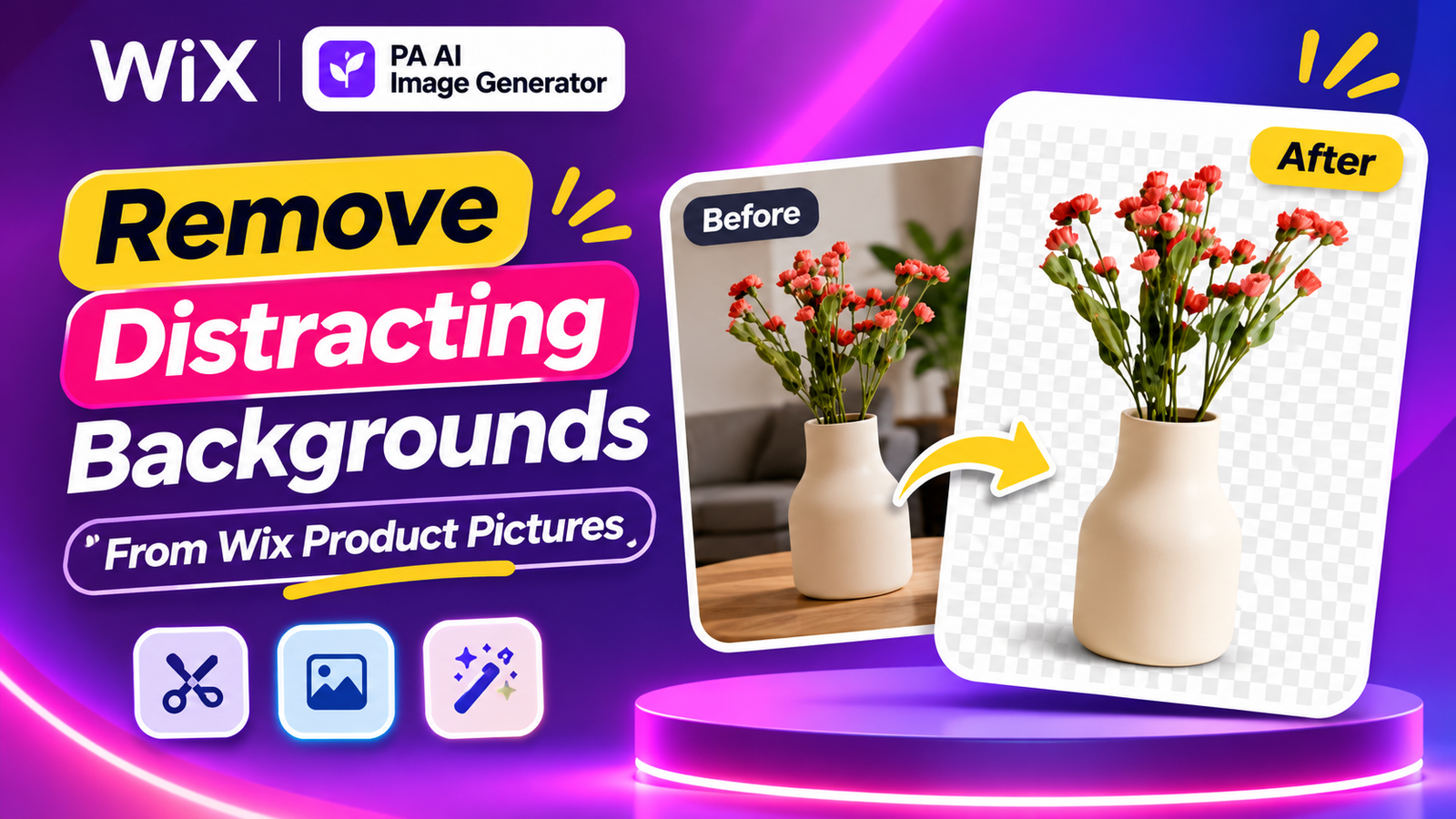
Introduction
Product photography plays an important role in how customers perceive your Wix online store. When someone visits your product pages, clear and attractive images help them understand what you’re selling and evaluate the product’s quality.
However, many Wix merchants struggle with distracting product image backgrounds. Cluttered rooms, unwanted objects, busy patterns, and inconsistent surroundings can make even high-quality products look less appealing.
Traditionally, removing these backgrounds required Photoshop, manual editing, or professional photo editing services.
Fortunately, AI-powered tools make background removal much easier.
With PA AI Image Generator, Wix store owners can remove distracting backgrounds from existing product photographs and create cleaner images without advanced editing skills.
In this guide, you’ll learn how to remove distracting backgrounds from Wix product pictures, with step-by-step instructions, screenshots, practical photography tips, and SEO recommendations.
Why Product Image Backgrounds Matter
An attractive product image should help customers focus on the product rather than the surrounding environment.
Clean product backgrounds can help you:
-
Highlight important product details.
-
Create a more professional storefront.
-
Maintain consistent product photography.
-
Reduce unnecessary visual distractions.
-
Improve product catalog organization.
-
Support a recognizable brand identity.
-
Help customers compare different products.
For example, a ceramic vase photographed in a cluttered room may be harder to evaluate than the same vase displayed against a clean, neutral background.
Common Background Problems Wix Merchants Face
1. Cluttered surroundings
Products photographed in bedrooms, offices, or busy environments may contain unwanted objects.
2. Inconsistent backgrounds
Some catalog images may use white backgrounds while others have unrelated colors and patterns.
3. Poor product visibility
Background colors that closely match the product can make it difficult to distinguish its edges.
4. Limited editing experience
Not every Wix merchant knows how to remove backgrounds using professional photo editing software.
5. Time-consuming manual editing
Manually selecting product edges and removing unwanted objects can become difficult when managing numerous photographs.
6. Expensive photography services
Hiring professionals to retouch every product image can increase business expenses.
What Is AI Product Background Removal?
AI background removal is an image editing process that identifies the main subject of a photograph and separates it from its surroundings.
For example, if you photograph a vase on a table, AI background removal attempts to isolate the vase and remove the surrounding background.
The resulting image may have a transparent background, allowing you to use the isolated product in other designs or apply a different background color.
However, AI background removal is not always perfect. Complex edges, transparent objects, reflective materials, and fine details may require additional review.
Introducing PA AI Image Generator for Wix
PA AI Image Generator is an AI-powered product photography application available on the Wix App Market.
It provides several editing options:
-
AI background removal.
-
Solid-color background replacement.
-
Custom background colors.
-
AI lifestyle scene generation.
-
Text-based photography prompts.
-
Before-and-after image comparisons.
-
Publishing edited photographs to Wix products.
For this tutorial, we’ll focus on the Remove background feature.
How to Remove Distracting Backgrounds From Wix Product Pictures: Step-by-Step Guide
Step 1: Open the Wix App Market
Open your browser and search Google for Wix App Store.
Select the official Wix App Market result.

Image 1: Search Google for the official Wix App Market.
You can also open the Wix App Market directly.
Step 2: Search for PA AI Image Generator
Inside the Wix App Market, locate the app search field.
Enter PA AI Image Generator and search.

Image 2: Enter PA AI Image Generator into the Wix App Market search bar.
Step 3: Select PA AI Image Generator
Find PA AI Image Generator by TheScriptFlow in the search results.
Click the application to view its listing.

Image 3: Find the correct PA AI Image Generator application.
Step 4: Install PA AI Image Generator
On the application listing page, click Add to Site.
Choose your Wix website if prompted and complete the installation process.

Image 4: Click Add to Site to install PA AI Image Generator.
Direct app link: Install PA AI Image Generator
Step 5: Open the Application in Your Wix Dashboard
After installation, open your Wix website dashboard.
Navigate to Apps → AI Product Images.

Image 5: Access AI Product Images from your Wix dashboard’s Apps menu.
The application displays products available in your store.
Step 6: Select the Product You Want to Edit
Browse your product list and choose the item with a background you want to remove.
For this tutorial, we’ll use a Ceramic Flower Vase.

Image 6: Choose a product from the Wix catalog to edit its photographs.
Step 7: Open Photo Studio
After selecting your product, open the Photo Studio.
Choose the photograph you want to edit.

Image 7: Open Photo Studio and review the available image editing options.
The Photo Studio offers Remove background, Replace background, and AI scene.
Step 8: Locate the Remove Background Feature
Scroll to Edit this photo and find the Remove background section.
The interface explains that this feature creates a cutout of the product with a transparent background.

Image 8: Locate the Remove background option in Photo Studio.
Before processing, verify that the correct photograph is selected.
According to the supplied interface, background removal uses one credit per operation.
Step 9: Remove the Distracting Background
Click Remove background.
The application processes the selected photograph, attempting to separate the product from the original background.

Image 9: Use the Remove background control to begin the AI editing operation.
The screenshot shows the removal control rather than a completed background-removal comparison.
After processing finishes, inspect the result in the Photo Studio’s Result section.
Pay particular attention to narrow objects, fine details, transparent areas, and shadows.
Step 10: Review the Edited Product Image
Compare the edited photograph with the original.
Check whether:
-
The distracting surroundings have been removed.
-
The product’s original shape remains accurate.
-
Important edges and details are preserved.
-
The product’s original color has not changed unexpectedly.
-
No unwanted background fragments remain.
If the result is unsatisfactory, avoid publishing it until the issues are corrected.
Step 11: Choose a New Background if Needed
Removing the background and replacing the background are separate operations.
If you want a clean white, cream, gray, or branded color behind the product, use Replace background.
For example, you can choose:
| Background | HEX code |
|---|---|
| White | #FFFFFF |
| Light gray | #F2F2F2 |
| Cream | #FFF4E3 |
| Sage green | #B2C5A3 |
| Black | #000000 |
Choose a color that provides sufficient contrast with the actual product.
Step 12: Publish the Updated Product Photograph
Once the final image looks accurate, click Publish to product (becomes main photo).
According to the app interface, publishing replaces the main product image while keeping original photographs in the product gallery.
Review the published product page to ensure the image displays correctly on desktop and mobile.
Best Background Styles for Wix Product Photos
| Product category | Recommended background | Why it works |
|---|---|---|
| Skincare | White or cream | Clean, minimal presentation |
| Jewelry | Black or soft gray | Helps emphasize details |
| Home decor | Warm neutral tones | Complements decorative products |
| Electronics | White or cool gray | Modern, uncluttered appearance |
| Fashion accessories | Ivory or beige | Consistent editorial style |
| Handmade products | Sage green or cream | Natural visual identity |
| Perfumes | Black or charcoal | Premium commercial appearance |
Background Removal vs. Background Replacement
These features perform different tasks.
| Feature | Remove background | Replace background |
|---|---|---|
| Main purpose | Isolate a product | Change its background color |
| Result | Transparent-background cutout | Solid-color background |
| Best for | Product isolation and design assets | Product catalog consistency |
| Custom colors | Not applicable | Supported |
| Credits shown in app | 1 per operation | 1 per operation |
If your goal is simply to remove surrounding objects, begin with background removal. If you need a specific catalog color, use background replacement.
7 Tips for Better Product Background Removal
1. Start with a clear photograph
Use a high-quality source image where the product is easy to distinguish from its surroundings.
2. Choose contrasting backgrounds
When taking original photographs, avoid placing products against backgrounds that closely match their color.
3. Check fine product details
Thin flower stems, jewelry chains, transparent materials, and reflective objects can be challenging for automatic background removal.
4. Preserve accurate product colors
Avoid changes that make the product look substantially different from what customers will receive.
5. Use consistent backgrounds
Choose a small group of approved colors for your store’s product catalog.
6. Keep image dimensions consistent
Use appropriate image proportions so product thumbnails align properly.
7. Preview before publishing
Check the edited photograph at different display sizes, especially on mobile.
How Clean Product Images Improve Your Wix Store
Professional product presentation
Clean backgrounds help products appear more organized and visually consistent.
Easier product comparison
Shoppers can evaluate different items without distracting surroundings.
Stronger brand identity
Using a consistent photography style can help create a recognizable storefront.
More flexible promotional content
Transparent product cutouts can be useful when creating marketing graphics and promotional designs.
Reduced manual editing
AI-powered background removal can simplify repetitive editing tasks.
Common Background Removal Mistakes to Avoid
-
Using blurry original photographs.
-
Removing important product shadows without considering the final appearance.
-
Leaving unwanted background fragments around edges.
-
Applying backgrounds that make products difficult to see.
-
Changing important product colors or design details.
-
Publishing AI-edited photographs without inspection.
-
Assuming every product will produce a perfect result automatically.
Frequently Asked Questions
How do I remove distracting backgrounds from Wix product pictures?
Install PA AI Image Generator, open a product photograph in Photo Studio, select Remove background, and review the generated result.
Can I remove a product image background without Photoshop?
Yes. PA AI Image Generator provides an AI-powered background removal feature directly in the Wix dashboard.
Can I make product backgrounds transparent?
The app’s Remove background feature is described in its interface as creating a product cutout with a transparent background.
Can I change the background to white afterward?
Yes. Use the separate Replace background feature and select White or enter #FFFFFF.
How many credits does background removal use?
The screenshots indicate that background removal uses one credit per operation.
Will my original photographs remain available?
The application’s publishing interface states that original photographs remain in the gallery when an edited image becomes the main photo.
Does removing backgrounds improve Wix store conversions?
Clean photographs can support customer confidence and product visibility, but they do not guarantee increased sales.
Conclusion
Distracting product image backgrounds can make a Wix online store appear less organized and professional.
By removing unnecessary surroundings and using consistent background styles, merchants can create cleaner product photographs that help customers focus on what matters.
With PA AI Image Generator, you can remove unwanted backgrounds, apply custom background colors, create lifestyle scenes, and publish edited photographs directly from your Wix dashboard.
Whether you sell home decor, skincare, jewelry, fashion accessories, or electronics, AI-powered background editing offers a practical way to improve product presentation without complicated manual editing.